On this page
A LinkedIn event is a page for your webinar, workshop, launch or meet-up that people can find on LinkedIn and sign up for. You can create one from your profile or from a company page you administer, online or in person, in a few minutes. Below are the steps on LinkedIn, the cover image size LinkedIn asks for (opens in a new tab), how to get people to come, and how to create and share LinkedIn events from Fliok, next to your WhatsApp.
How to create a LinkedIn event
These steps follow LinkedIn’s help page on creating an event (opens in a new tab), which says that “as a LinkedIn member or Page admin, you can create an event” and invite members to join.
- 1Open the form. On the website, click the Home icon, then Events in the left pane, then Create an Event. In the app, tap My Network, then Manage my network, Events and Create.
- 2Add a cover image and its alt text, a short description of the picture for screen readers.
- 3Pick the organizer: your profile or a page you administer.
- 4Pick the event type: Online, or In person, which needs the venue and location.
- 5Pick the format for an online event: External event link for a video call or a stream elsewhere, or LinkedIn Live if your account has access to it.
- 6Name the event, choose the time zone, the start date and time, and an end time if you want one.
- 7Ask people to register with a LinkedIn registration form, if you are creating the event as a page. You must give a link to your privacy policy.
- 8Describe the event and add speakers. A speaker can be added only if they are your LinkedIn connection.
- 9Click Next, write a short post to announce the event, choose who sees it, and click Post. LinkedIn’s page (opens in a new tab) is clear that “the event won't be created until you complete this step.”
Warning: Check the organizer, type and format before you click Post. LinkedIn’s help page says that once the event is posted you can’t change the organizer, the event type (online or in person) or the event format (LinkedIn Help (opens in a new tab)).
LinkedIn event image size
LinkedIn’s help page (opens in a new tab) gives the cover image rules in one line: “You can use different banner sizes including 480x270 or 1280x720 pixels. The minimum width is 480 pixels, and the aspect ratio must be 16:9.” Upload the image from your device; LinkedIn’s page says images stored in the cloud cannot be uploaded.
For a sharp result, make the cover 1280 × 720 pixels. Put the event’s name and date in large letters near the middle, where they are least likely to be cut off on a phone, and keep your logo small.
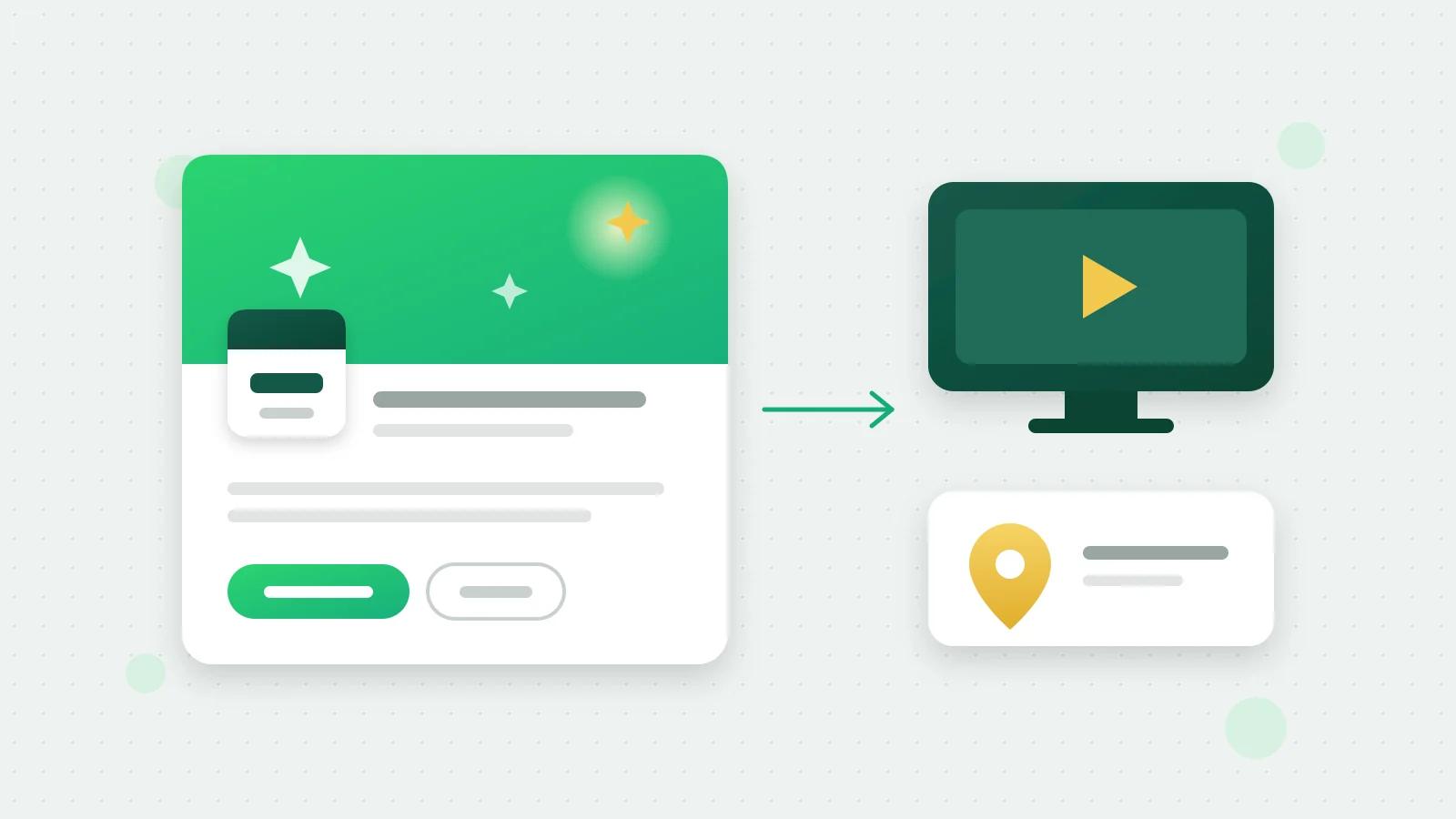
Online or in person: which to choose
- Online suits webinars, product demos, training sessions and Q&As with customers in other cities. People join at the link you give, so make sure it is the final link before you post.
- In person suits store launches, open days, workshops and trade fair stalls. Add the full address and venue details, such as the floor or the hall number, so nobody has to message you to ask.
Since the type cannot change after posting, create a second event if a session moves from the venue to online.
How to get people to your LinkedIn event
- Share it as a post. The last step of creating an event already does this; share it again from your company page if you created it as yourself.
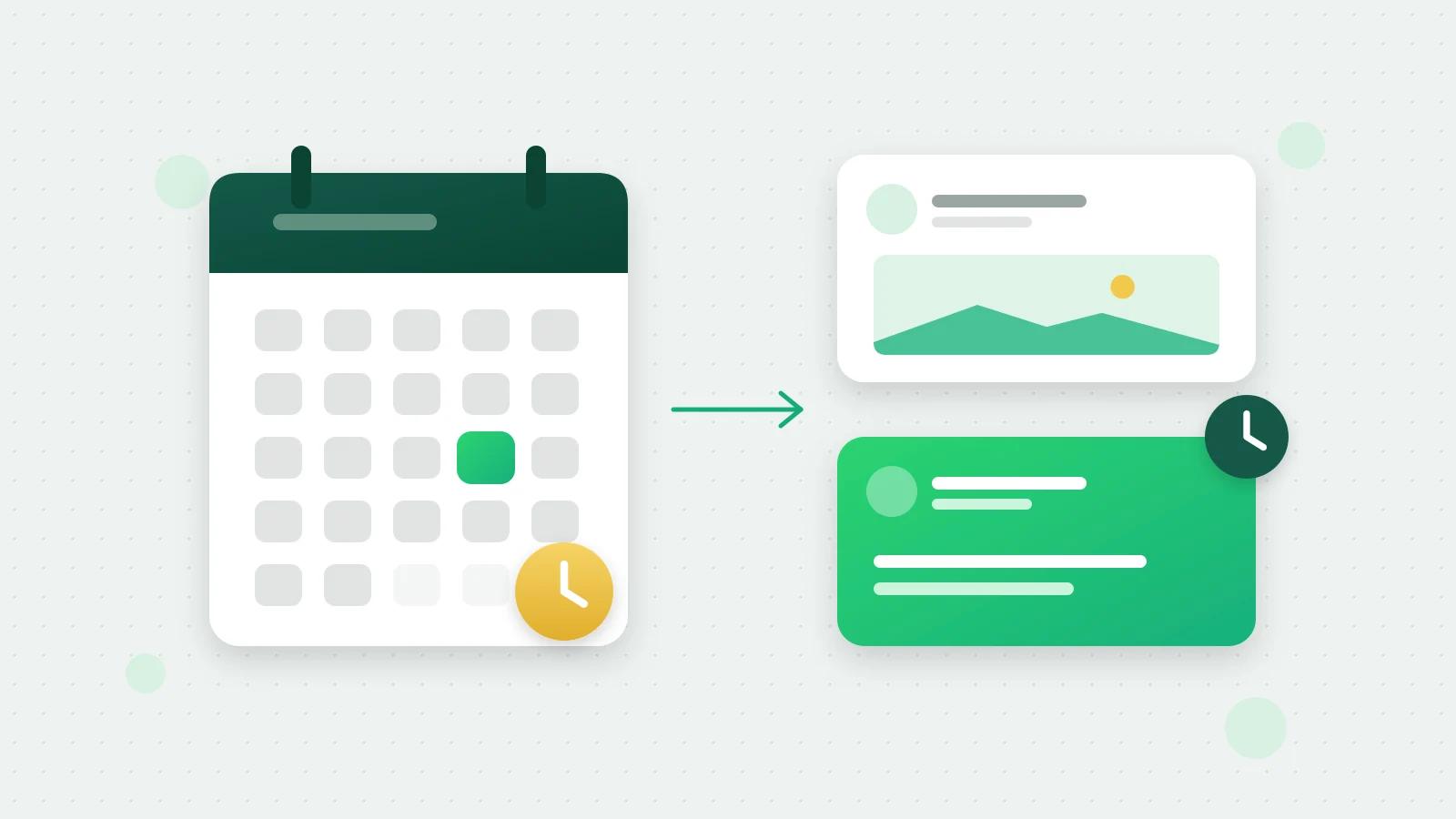
- Remind people. A post a week before and another the day before keep it in front of people. Schedule both when you create the event.
- Invite people who know you. Customers and enquirers who agreed to hear from you on WhatsApp can get the link there, as an approved marketing template sent through broadcasts.
- Follow up. After the event, share the recording or the slides as a document post, and thank the people who came.
Create a LinkedIn event from Fliok
With the LinkedIn add-on, LinkedIn → Events in Fliok creates LinkedIn events through LinkedIn’s official API, next to your posts and your WhatsApp (LinkedIn Events in Fliok).
- Online or in person. An online event takes the link people join at. An in-person event takes the address, venue details and, if you have one, a link to the event’s page or registration form.
- The details. A name of up to 75 characters, a description of up to 5,000, and an optional cover picture (JPG or PNG).
- The time. The start must be at least 10 minutes ahead and no more than 365 days ahead, and an event can run for up to 14 days.
- The organizer is the LinkedIn member you connected to Fliok. To host an event as a company page, create it on LinkedIn itself.
- Share it as a post, now or at a time you pick, to anyone or to your connections only.
- Changes. Once an event is shared, you can change it from Fliok until it starts.
Fliok does not offer LinkedIn Live: an online event made in Fliok uses your own link. For the posts around the event, use Fliok’s post scheduler; for how they did, company page insights.
What it costs
Creating an event on LinkedIn costs nothing in itself. LinkedIn in Fliok is a paid add-on on the Basic plan and above: ₹499 a month in India, excluding 18% GST, or $9 a month outside India, about 10% less when paid yearly. Tick it while choosing your plan, or later in Plan & billing, under Add-ons; see the LinkedIn add-on on the pricing page. Then connect in Settings → Integrations → LinkedIn with LinkedIn’s own sign-in (how to connect LinkedIn). See LinkedIn for business for everything in it.
Frequently asked questions
Can I create a LinkedIn event from a company page?
Yes. In LinkedIn’s event form, the Organizer field lets you choose your profile or a page you administer, and the LinkedIn registration form is available only for events created by pages. Events created from Fliok have your connected LinkedIn profile as the organizer.
What size should a LinkedIn event cover image be?
LinkedIn asks for a 16:9 image at least 480 pixels wide, and names 480 × 270 or 1280 × 720 pixels as sizes you can use. 1280 × 720 gives the sharpest result. Upload it from your device; cloud-stored images are not supported.
Can I change a LinkedIn event after posting it?
Some of it. LinkedIn’s help page says you can’t change the organizer, the event type (online or in person) or the event format once the event is posted, so check those before you click Post.
Can I stream a LinkedIn event on LinkedIn Live from Fliok?
No. Fliok creates online events with an external link, such as your video call. LinkedIn Live is chosen in LinkedIn’s own event form, and LinkedIn shows that option only to accounts that have access to it.
How do I share a LinkedIn event?
The last step of creating an event is writing a post that announces it; the event is created only when you post it. From Fliok, you share an event as a post at once or at a time you pick, and you can schedule reminder posts before it.
Written by the Fliok team
The team that builds the product. Plain explanations of Meta's rules and of what Fliok does with them.
Try it on your own number
The Free plan connects one WhatsApp number, with no time limit. Questions first? A person replies within one business day.