On this page
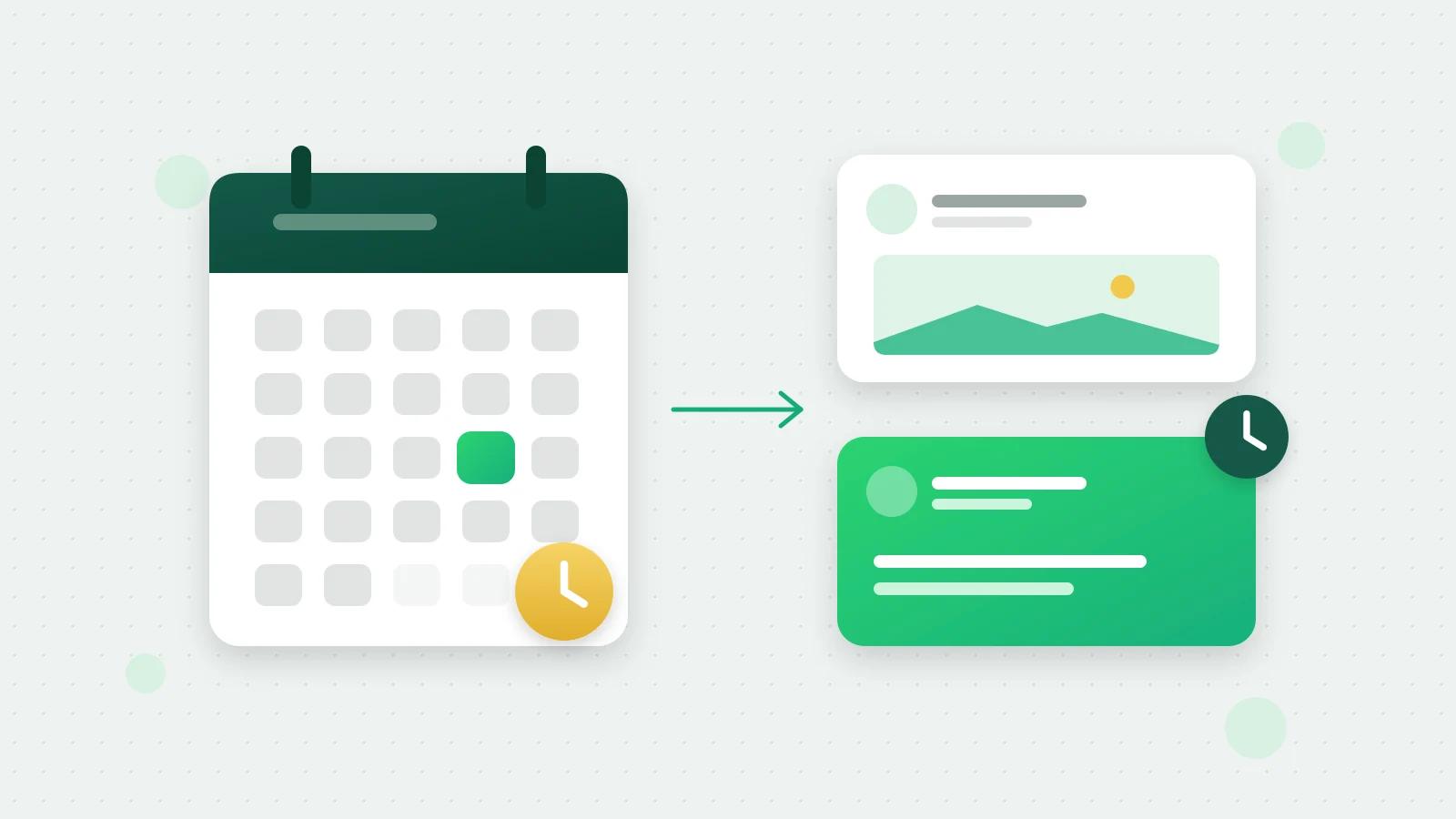
You can schedule LinkedIn posts for free without any tool: LinkedIn’s own scheduler (opens in a new tab) takes a post from your profile up to three months ahead, and a company page post too if you are one of the page’s admins. A tool earns its place when you need a kind of post LinkedIn will not schedule, one list of everything going out from your profile and your pages, or LinkedIn planned next to your WhatsApp. Here is how to do it both ways, step by step.
How to schedule LinkedIn posts from your profile
These are the steps on the LinkedIn website, from LinkedIn’s help page on scheduling posts (opens in a new tab):
- 1Click Start a post at the top of your LinkedIn homepage.
- 2Write the post, and add a photo or video if you like.
- 3Click the clock icon in the lower-right corner of the post box.
- 4Pick the date and time, then click Next.
- 5Check the post and click Schedule.
LinkedIn says you can schedule a post between 10 minutes and 3 months from the current time, and that the time you pick is converted from your device’s time zone (LinkedIn Help (opens in a new tab)). The LinkedIn app has the same clock icon next to the Post button. Events and job posts cannot be scheduled this way.
How to schedule a post on a LinkedIn company page
Scheduling for a company page works the same way, from the page’s admin view, with tighter limits. According to LinkedIn’s help page for page posts (opens in a new tab), you must be a super admin or a content admin of the page, a post can go out anywhere from an hour to three months ahead, and the time follows your location.
- 1Open your page’s super admin or content admin view.
- 2Click Page posts in the left menu, then Start a post.
- 3Click the clock icon in the lower right and pick the date and time.
- 4Click Next, finish the post and click Schedule.
Note: LinkedIn’s page scheduler does not take every kind of post. Its help page lists events, multiple photos, reshares, polls, jobs and service posts as posts you can’t schedule for a page (LinkedIn Help (opens in a new tab)).
How to see, change or delete a scheduled post
On your profile, click Start a post, click the clock icon, and choose View all scheduled posts. LinkedIn’s help page says that from that list you can preview a post, use Modify schedule or Edit post, or delete it (scheduling posts (opens in a new tab)). Page admins have their own help pages for rescheduling, editing and deleting a page’s scheduled posts, linked from the page scheduling article (opens in a new tab).
Is LinkedIn’s free scheduler enough?
For one person posting a few times a week from their own profile, usually yes. It is free, it is inside LinkedIn, and nothing else needs connecting. It starts to fall short when:
- you want to schedule a poll, an event or a post with several photos for a company page;
- several people prepare posts, and one person should approve what goes out;
- you post from your profile and one or more pages, and want one list of everything scheduled;
- you already run your customer chats on WhatsApp and would rather plan LinkedIn in the same place.
How to schedule LinkedIn posts in advance with Fliok
Fliok connects to LinkedIn through LinkedIn’s own sign-in and official APIs. Once connected, LinkedIn → Posts is where you write, schedule and follow your posts (LinkedIn posts in Fliok).
- 1Choose who posts. Yourself, or a company page you administer on LinkedIn. Company page posts are public; a post from your profile can go to anyone or to your connections only.
- 2Choose the kind of post. Text, one photo, 2 to 20 photos, a video, a document, a link to an article, or a poll.
- 3Write it, up to 3,000 characters.
- 4Publish now, save a draft, or schedule it. A scheduled time must be at least 2 minutes and at most 75 days ahead.
- 5Let it go out. Fliok keeps the post and publishes it through LinkedIn’s API at that time. Until then you can cancel it, and a cancelled post can be scheduled again.
| What | What Fliok’s composer takes |
|---|---|
| Text | Up to 3,000 characters |
| Photos | JPG, PNG or GIF, up to 10 MB each; 2 to 20 in one post |
| Video | MP4, up to 100 MB per upload |
| Document | PDF, PPTX or DOCX, up to 100 MB |
| Poll | A question of up to 140 characters, 2 to 4 options of up to 30 characters, running 1, 3, 7 or 14 days |
| Scheduling | From 2 minutes to 75 days ahead |
A few things to know before you rely on it:
- The queue is in Fliok. A post scheduled in Fliok waits in Fliok, not in LinkedIn’s own scheduled list, so you see it and cancel it on Fliok’s Posts page.
- Drafts for the team, sending for admins. Agents in your workspace can save drafts; an admin schedules or publishes them. That gives you a simple approval step.
- Events have their own page. To announce an event, create it on Fliok’s Events page and share it as a post, now or at a time you pick. See how to create a LinkedIn event.
- See what worked. For a company page, page insights show followers, new followers, page views, and post impressions and engagement by day, for the last 7, 30 or 90 days.
What it costs
LinkedIn’s own scheduler is free. LinkedIn in Fliok is a paid add-on on the Basic plan and above: ₹499 a month in India, excluding 18% GST, or $9 a month outside India, about 10% less when paid yearly. Tick it while choosing your plan, or later in Plan & billing, under Add-ons; see the LinkedIn add-on on the pricing page. Then connect in Settings → Integrations → LinkedIn with LinkedIn’s own sign-in (how to connect LinkedIn). The add-on covers posts and scheduling, Events, company page insights, ad results, the Ad Library and outreach with Fliok AI; see LinkedIn for business for all of it.
Tips for planning posts ahead
- Plan a week at a time. Write on one day, schedule the week, and spend the time you saved answering comments, which still needs a person.
- Post when your buyers are at work. If you sell to businesses in India, that means working hours in India, not when you happen to finish writing.
- Mix the kinds of post. A document or a set of photos explains a product better than a long block of text. Polls get people to answer in one tap.
- Check your numbers each month. Keep the kinds of post that brought impressions and followers, and drop the rest.
If you are deciding how to reach new people beyond your followers, read what is safe in LinkedIn automation before you install anything.
Frequently asked questions
Can you schedule posts on LinkedIn for free?
Yes. LinkedIn has a free scheduler: start a post, click the clock icon, pick a date and time and click Schedule. On a profile it takes a time from 10 minutes to 3 months ahead; on a company page, where you must be a super admin or content admin, from an hour to three months ahead.
How far in advance can you schedule a LinkedIn post?
Up to three months ahead with LinkedIn’s own scheduler, for a profile or a company page. In Fliok, a post can be scheduled from 2 minutes to 75 days ahead.
Can I schedule a post on a LinkedIn company page?
Yes, if you are a super admin or content admin of the page. LinkedIn’s page scheduler cannot schedule events, multiple photos, reshares, polls, jobs or service posts. Fliok can schedule a poll or a post with several photos for a page you administer.
Can I edit a scheduled LinkedIn post?
On LinkedIn, open View all scheduled posts, click the More icon on the post and choose Modify schedule or Edit post, or delete it. In Fliok, cancel the scheduled post before its time and schedule it again.
Do I need a tool to schedule LinkedIn posts?
Not for a few posts a week from your own profile: LinkedIn’s scheduler is free. A tool helps when you post for company pages, work as a team, or want LinkedIn next to WhatsApp. In Fliok, LinkedIn is an add-on on the Basic plan and above, at ₹499 a month in India, excluding 18% GST, or $9 a month outside India.
Written by the Fliok team
The team that builds the product. Plain explanations of Meta's rules and of what Fliok does with them.
Try it on your own number
The Free plan connects one WhatsApp number, with no time limit. Questions first? A person replies within one business day.