On this page
For years, moving a number to the WhatsApp Business API meant giving up the WhatsApp Business App on that number. You chose between the phone your business already runs on and the automation, broadcasts and team inbox the API makes possible.
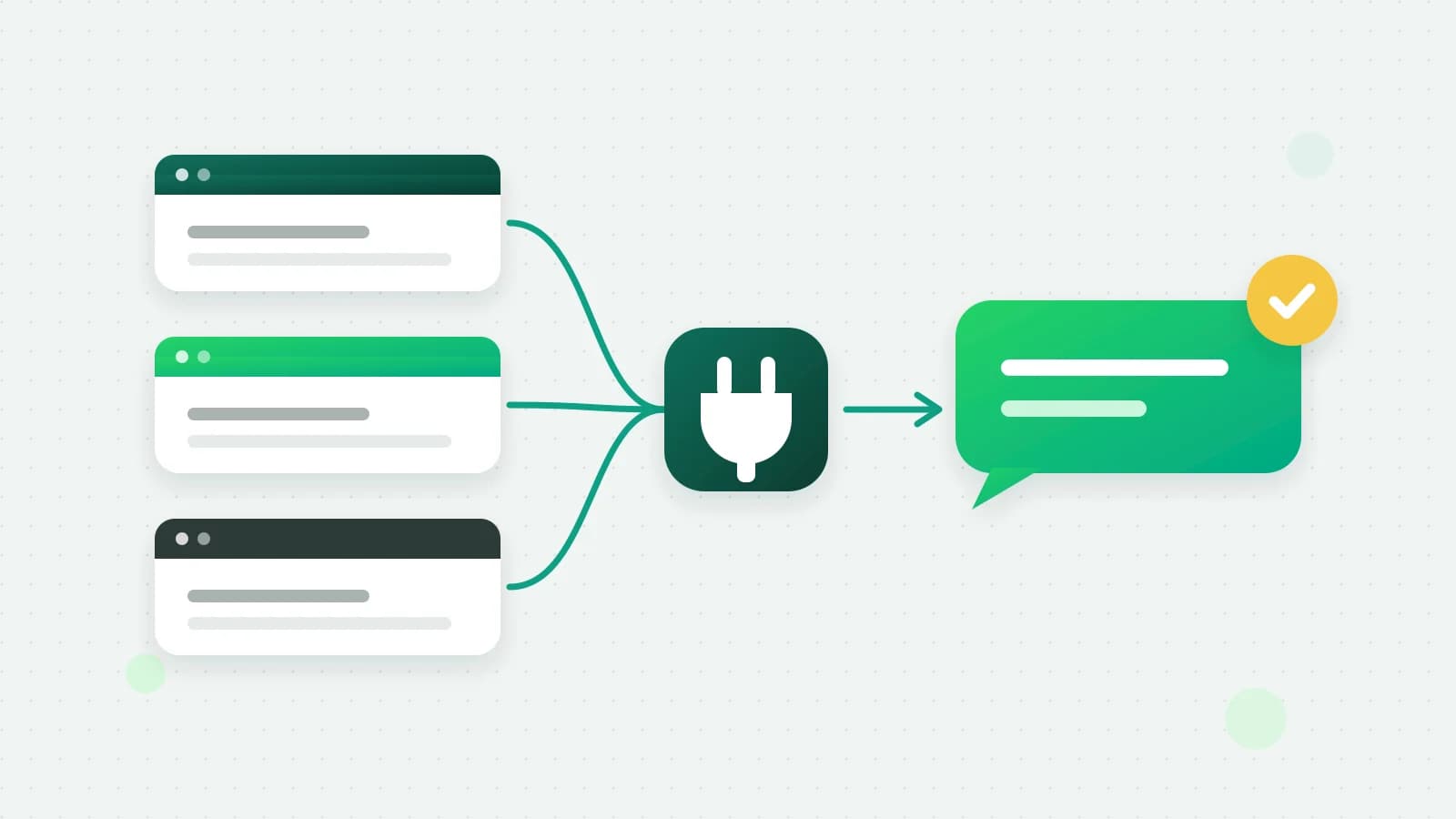
Meta’s coexistence mode removes that trade-off. The same number runs on the Cloud API and in the WhatsApp Business App on your phone at the same time. Fliok connects existing Business App numbers this way.
What coexistence is
Coexistence is Meta’s name for one WhatsApp Business number living in two places at once: the WhatsApp Business App on a phone, and the WhatsApp Cloud API that platforms like Fliok are built on. You set it up through Meta’s embedded signup by choosing to connect a number that is already on the Business App, and Meta asks you to confirm from the app on your phone.
What you keep
- The app on your phone. It keeps working. You can reply from it whenever you like.
- Your chat history. During onboarding Meta can share up to six months of your existing conversations, and Fliok imports them into the shared inbox, so your team does not start from an empty screen.
- Your contacts. Contacts saved in the Business App are synced across to the platform.
- One conversation. Messages you send from the phone are mirrored into the Fliok inbox (Meta sends them to us as message echoes), so a thread reads the same whichever side answered it.
What changes: Meta’s rules, not ours
- Linked devices are signed out once. WhatsApp Web and the desktop app are signed out when the number is connected. You can link them again, except WhatsApp for Windows and WhatsApp for Wear OS (Meta's coexistence guide).
- Open the app every 14 days. You need to open the WhatsApp Business App at least once every 14 days to keep it in sync.
- No groups through the API. WhatsApp groups are not available through the API on a coexistence number. Group chats on your phone carry on as normal; they just do not appear in the platform inbox.
- API rules apply to API sends. Anything sent through the platform follows Cloud API rules: outside a customer’s 24-hour service window, a business-initiated message has to be an approved template.
- Who pays for what. Messages you send from the WhatsApp Business App stay free. Messages sent through the API (from the Fliok inbox, a broadcast or the AI agent) are billed by Meta at its per-message rates, and as of October 2026 that includes free-form replies inside the 24-hour window (Meta’s non-template message charges).
Meta’s own guide to these rules is Onboard WhatsApp Business app users.
Being clear about these up front matters more than pretending nothing changes. Most people who hesitate are worried about losing the phone. They do not.
Why it is worth doing
The person who has always answered from the phone keeps doing that. Meanwhile the rest of the team gets a shared inbox on the same number, you can send template broadcasts to opted-in contacts, build chatbot flows and automations, and on the Basic plan and above turn on an AI agent that answers new enquiries at any hour. Moving to the API stops being a cliff and becomes an addition.
How to connect a number on Fliok
- 1Create a free Fliok account. The Free plan is enough to connect a number and try the inbox.
- 2In onboarding, choose to connect your existing WhatsApp Business App number. Meta’s embedded signup opens and walks you through confirming the connection from the app on your phone, including whether to share your recent chat history.
- 3Once connected, replies you send from the phone start appearing in the Fliok inbox on their own.
Tip: If you get stuck, contact us. The review steps inside Meta (business verification, display name approval) are decided by Meta, and no platform can speed them up.
Written by the Fliok team
The team that builds the product. Plain explanations of Meta's rules and of what Fliok does with them.
Try it on your own number
The Free plan connects one WhatsApp number, with no time limit. Questions first? A person replies within one business day.