On this page
- What do people mean by “WhatsApp and Google Sheets”?
- 1. Your leads, bills and bookings as rows in your own sheet
- 2. Send sheet rows and Google Form answers into Fliok as leads
- 3. Log anything else in a sheet through Zapier, Make or Pabbly
- 4. Send a WhatsApp template from Zapier, Make, Pabbly or a sheet
- Worked example: Facebook Lead Ads to a WhatsApp welcome
- Recipes that work
- Things to watch
- Frequently asked questions
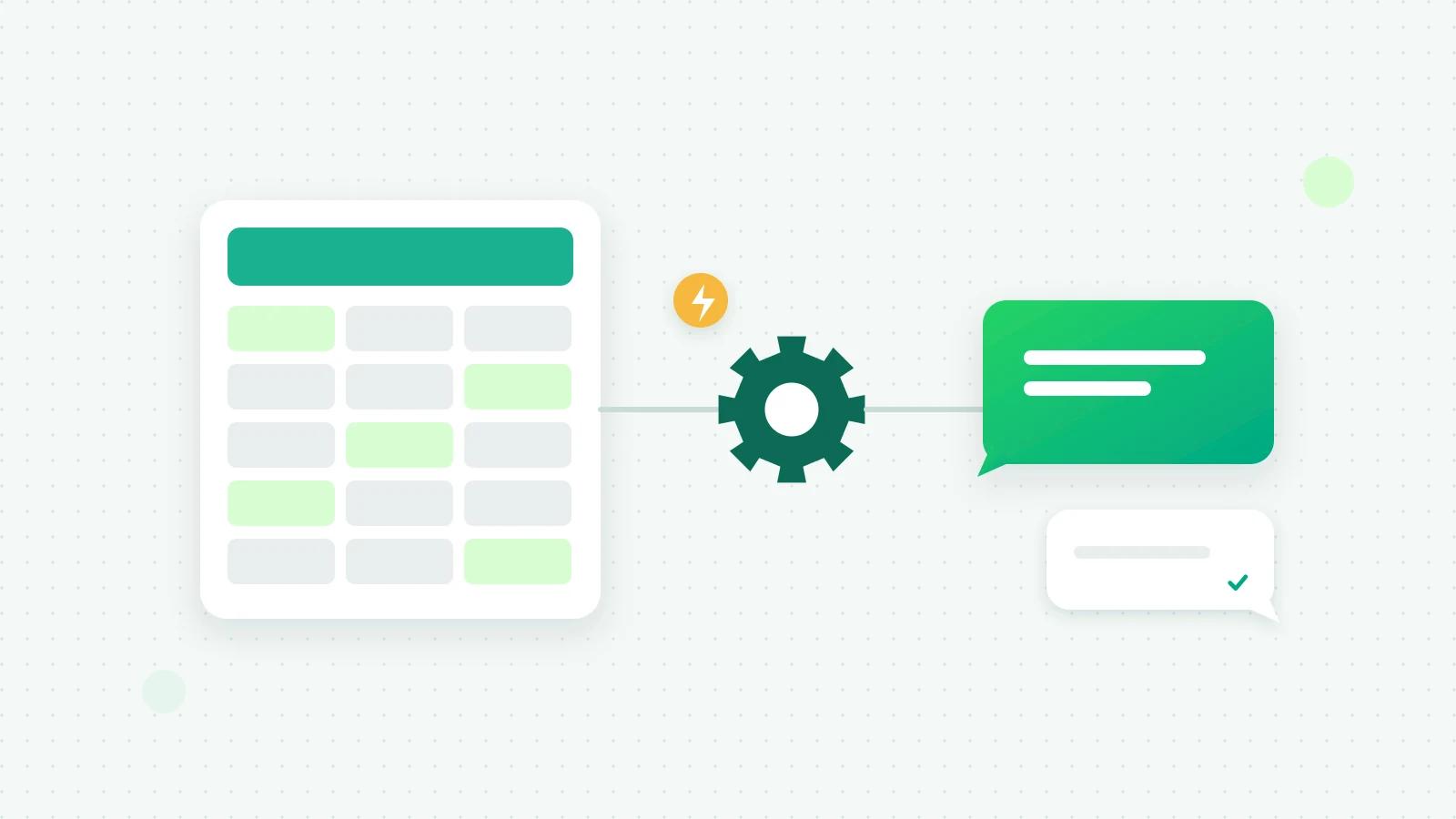
The simplest way to connect WhatsApp to Google Sheets is a direct connection from your WhatsApp platform to a spreadsheet in your own Google account: each new lead, invoice, payment and booking is added as a row as it happens, with no other tool in between. In Fliok that is the Google Sheets connection, on the Basic plan and above. Two other directions need different tools: sheet rows or Google Form answers coming into your WhatsApp CRM as leads, and WhatsApp messages sent when a row is added. This guide covers all three.
What do people mean by “WhatsApp and Google Sheets”?
Swipe the table sideways to see every column.
| You want to | How it works in Fliok | Plan |
|---|---|---|
| Keep new leads, contacts, invoices, payments and bookings in a sheet | Connect Google Sheets: Fliok adds a row as each thing happens | Basic and above |
| Turn sheet rows or Google Form answers into WhatsApp leads | The sheet posts each row to your private capture link | Basic and above |
| Log messages or other events in a sheet | An automation calls a webhook, or Fliok’s signed webhooks do, into Zapier, Make or Pabbly | Basic (automation webhook), Pro (signed webhooks) |
| Send a WhatsApp template when a row is added | Zapier, Make, Pabbly or Apps Script call Fliok’s REST API | Pro and above |
1. Your leads, bills and bookings as rows in your own sheet
- 1An admin opens Settings → Integrations → Google Sheets in Fliok and presses Connect Google Sheets.
- 2Sign in to Google and allow it. The only permission asked for is to create and use this one spreadsheet.
- 3Fliok makes one new spreadsheet in your Google account, named “Fliok” and your workspace’s name. It can open only the spreadsheet it made, and cannot see your other files.
- 4Choose what to write. There is a switch for each list, and each has a tab of its own: Leads, Contacts, Invoices, Payments and Bookings. Fliok writes the heading row once, and times are in your workspace’s time zone.
What happens next:
- A row as each thing happens: a new lead, a new contact, an invoice issued, edited, paid or cancelled, a payment recorded or voided, a booking made, moved, cancelled, completed or marked a no-show.
- Rows are only added, never rewritten, and nothing is read back from the sheet. When an invoice is paid, a new row says so. A voided payment is a new row with a minus amount, so the column still adds up, and your own columns, notes and sorting are left alone.
- Invoices and Payments carry the columns an accountant asks for.
- If something breaks, such as the spreadsheet being deleted or Fliok’s access removed at Google, the card shows Needs attention and says what to do. Rows are kept for up to 14 days meanwhile and written once it is put right.
- Disconnecting stops new rows and removes Fliok’s access; the spreadsheet stays in your Google Drive.
It does not write into a spreadsheet you already have, and there is no tab for quotations or reviews. Bills and bookings themselves come with a monthly allowance on your plan (bills 300 on Basic, 1,500 on Pro and unlimited on Enterprise; bookings 500 on Basic, 2,500 on Pro and unlimited on Enterprise); the rows they add cost nothing extra. See Google Sheets and the help answer.
2. Send sheet rows and Google Form answers into Fliok as leads
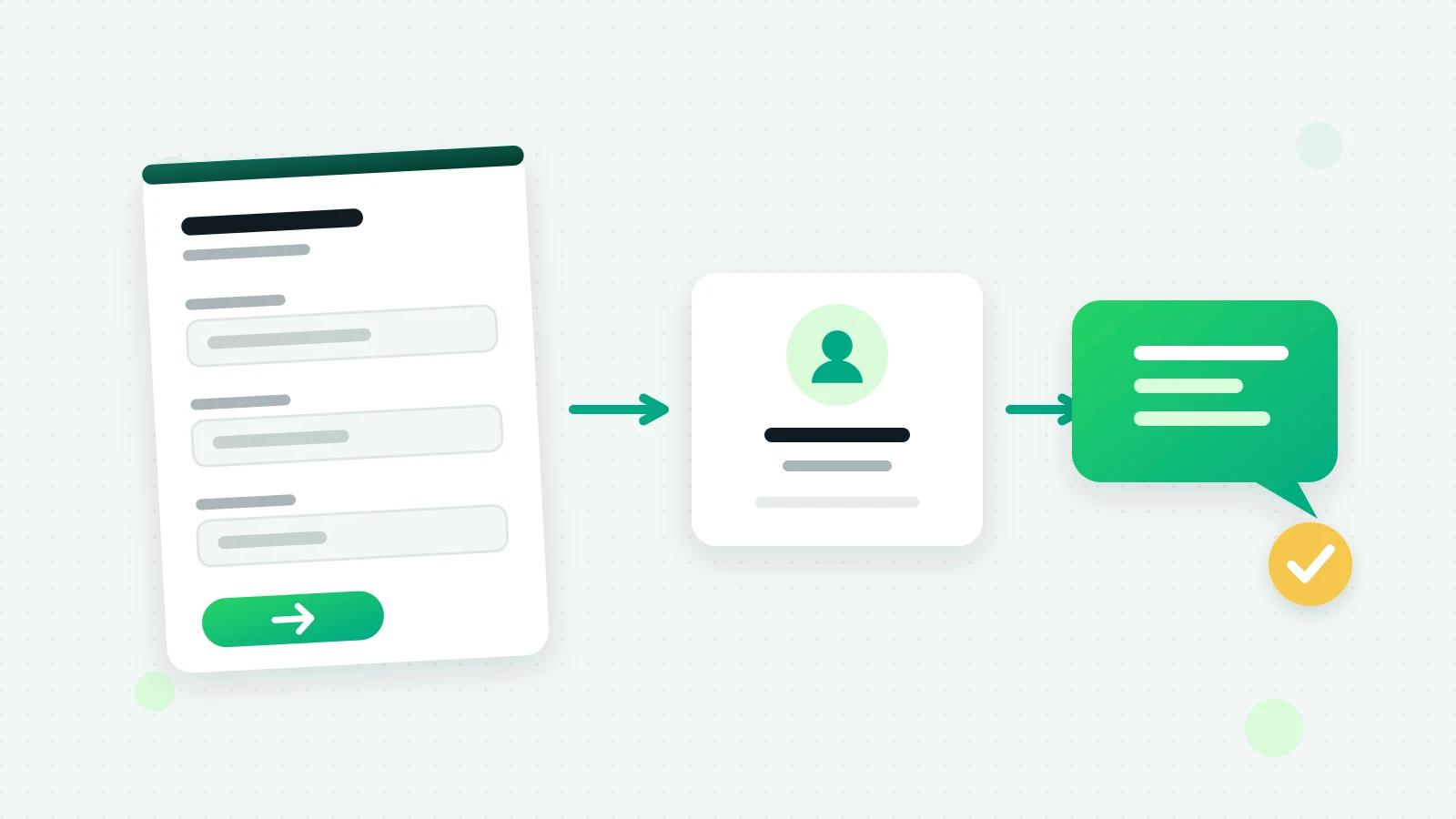
This is the other direction. Fliok’s lead capture link (Settings → Sales pipeline → Lead capture) accepts a lead from anything that can make a web request. For Google Sheets, the setup guide in that section gives you a short Apps Script:
- 1In the sheet, open Extensions → Apps Script, paste the script with your capture link in it, and save.
- 2Make row 1 your headers, such as Name, Phone and Email.
- 3Add a trigger for sendLead, from the spreadsheet, On form submit (for a Google Form) or On change.
Each new row becomes a lead. Phone is required; name and email are recognised under most column names (“Full name”, “your-name”), and any column that matches one of your contact fields is saved to it. A number already in the CRM is updated, not duplicated. The link works like a password, so only admins and owners can see it.
Then make it a conversation: an automation with the trigger A new lead arrives, limited to that source, and the action Send a WhatsApp template welcomes each new lead on WhatsApp. Only message people who agreed to it on the form. The whole recipe for forms is in Google Form to WhatsApp, and the same link takes leads from Facebook Lead Ads and website forms; see lead capture.
3. Log anything else in a sheet through Zapier, Make or Pabbly
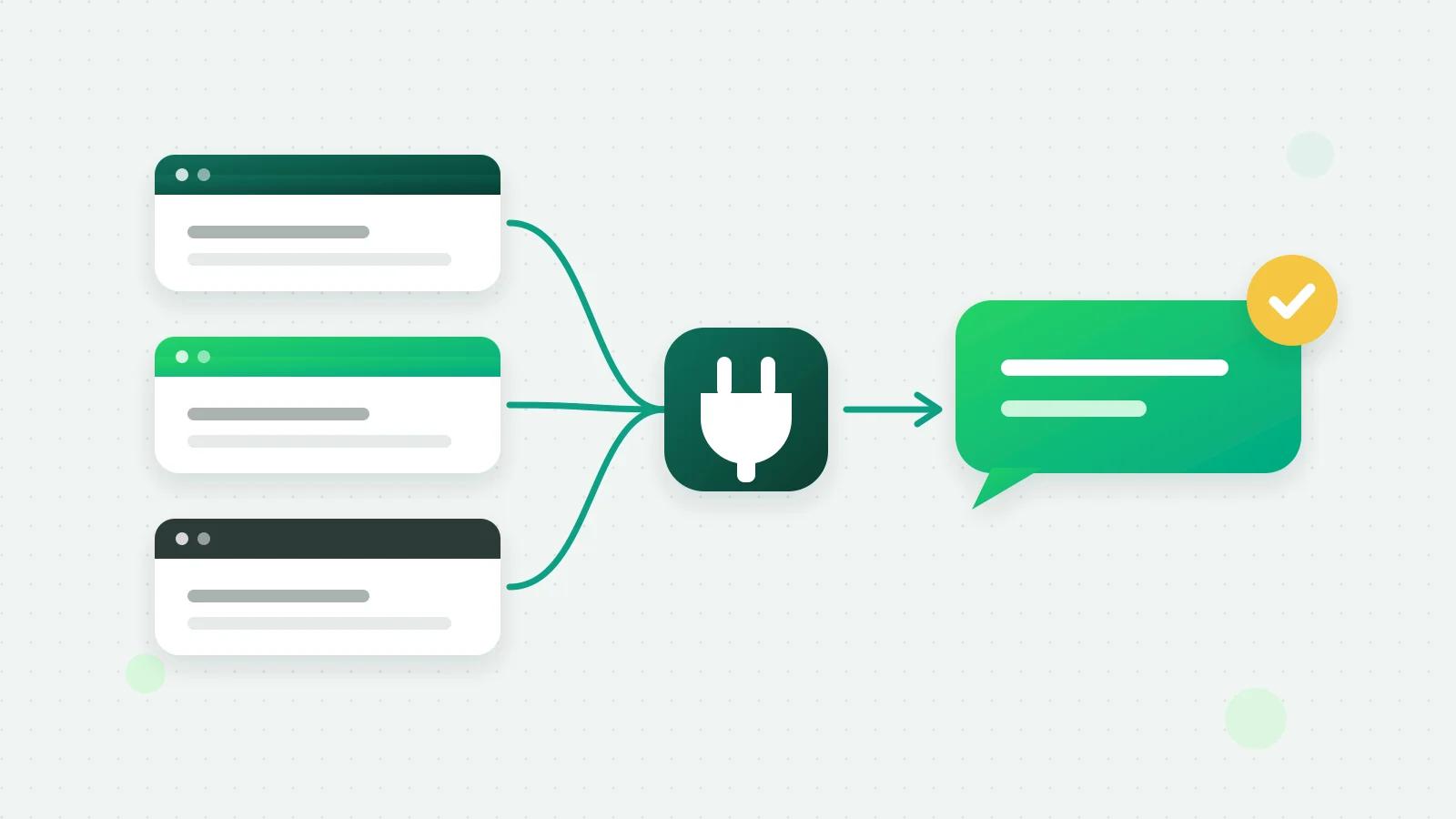
The direct connection writes five lists. For other events, or a sheet you already keep, go through an automation tool.
On Basic: add the action Call a webhook to an automation. When it runs, Fliok sends the lead as JSON to the address you give, such as a Zapier Catch Hook, a Make Custom webhook or a Pabbly webhook, and the next step in that tool can add a row to any sheet you like. Use it with triggers such as A new lead arrives, A lead moves stage or A payment comes in.
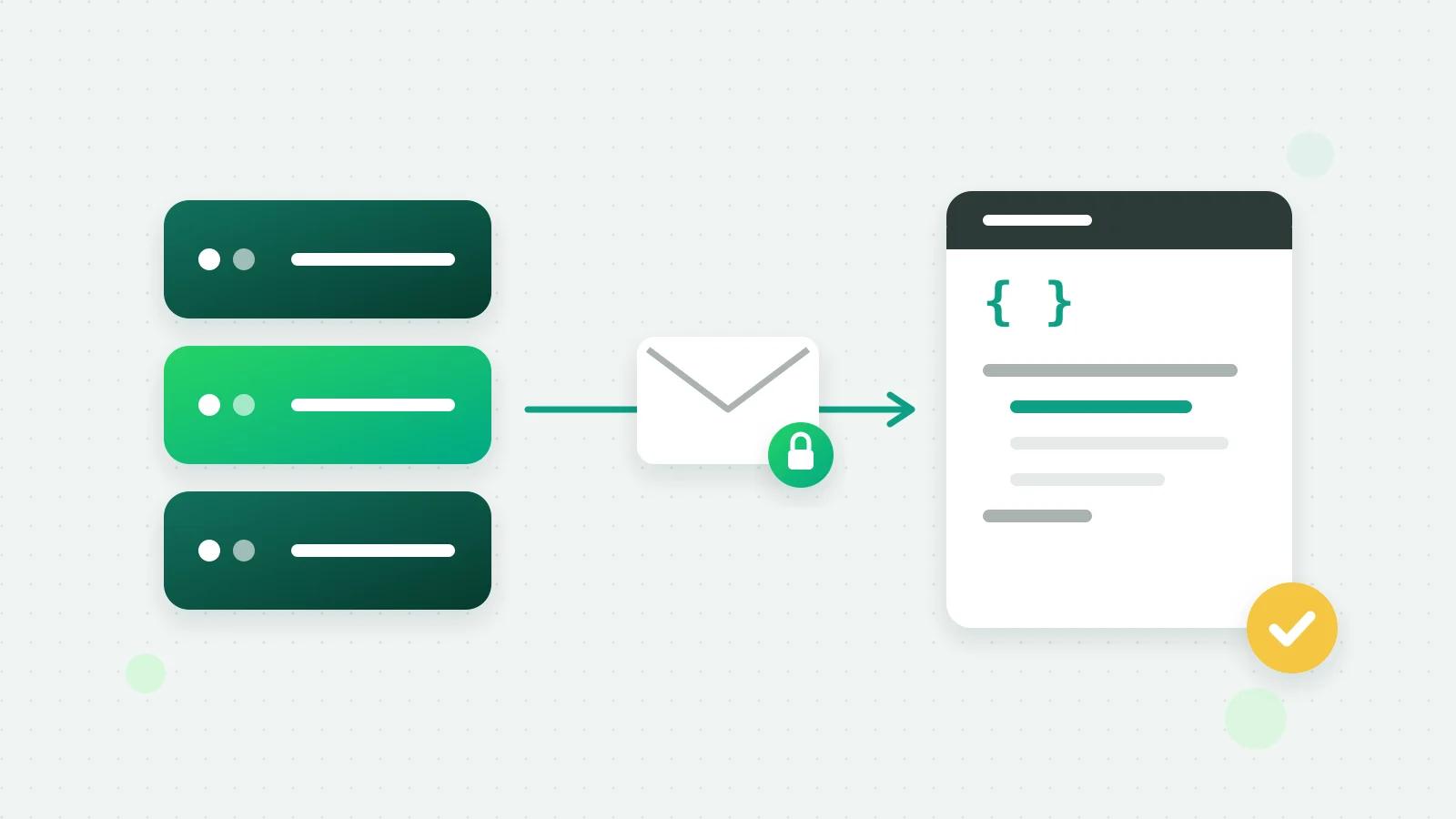
On Pro: Fliok’s signed webhooks send events as they happen: a message received, a lead created, a form submitted, a payment made, a broadcast completed and more. Each delivery is signed so you can check it came from Fliok (how to verify the signature), and failed deliveries are retried.
4. Send a WhatsApp template from Zapier, Make, Pabbly or a sheet
This uses Fliok’s REST API, on Pro and above. An admin creates an API key under API & webhooks, and the automation tool makes the call:
- Zapier: Webhooks by Zapier, Custom Request.
- Make: HTTP, Make a request.
- Pabbly Connect: API by Pabbly.
The request sends an approved template to a number, with its variables in order. A plain text message works too, but only within 24 hours of the customer’s last message. Fliok refuses a template with a blank variable before WhatsApp does, and never sends to someone who opted out. The exact settings for each tool are in the guides for Zapier, Make and Pabbly, and every endpoint is in the API docs.
Worked example: Facebook Lead Ads to a WhatsApp welcome
A common setup, from Fliok’s lead capture guide, that needs no API key:
- 1Zapier trigger: Facebook Lead Ads, New Lead, with your page and form.
- 2Zapier action: Webhooks by Zapier, POST (in Make, HTTP, Make a request; in Pabbly, API by Pabbly, POST).
- 3URL: your Fliok capture link, with the payload as JSON.
- 4Fields: name from Full name, phone from Phone number, email from Email, source as Facebook Lead Ads, and form as the form’s name. Any other question can be sent under its own name.
- 5In Fliok: an automation on A new lead arrives, only from the source Facebook Lead Ads, sends your welcome template and creates a call task for the owner.
The lead lands in the CRM with its source, is welcomed on WhatsApp in under a minute, and someone is reminded to call. If the person messages back, the chat is already linked to the lead.
Recipes that work
| When | Then |
|---|---|
| A Google Form is submitted | A lead in Fliok, and a welcome template on WhatsApp |
| A Facebook Lead Ads form is filled | A lead in Fliok through Zapier, Make or Pabbly |
| A new WhatsApp lead arrives | A row on the Leads tab of your connected sheet |
| A payment is recorded on an invoice | A row on the Payments tab, with the columns an accountant asks for |
| A row in an orders sheet is marked “Dispatched” | A dispatch template to the customer, through the API |
| A lead moves to Won | A row in your sales tracker |
Things to watch
- Templates outside 24 hours. Anything a sheet or a tool sends to someone who has not written in the last day must be an approved template.
- Opt-in. A phone number in a sheet is not permission to message it. Keep a column for consent, and only send to people who gave it.
- Blank cells. An empty name in a variable is refused, so give your sheet a default.
- Your keys. The capture link and API keys are secrets. Do not paste them where others can read them.
- Duplicates. Fliok matches on the phone number; keep numbers with their country code where you can.
Frequently asked questions
Google Sheets se WhatsApp message kaise bheje?
Through the WhatsApp Business API. In Fliok, a tool such as Zapier, Make or Pabbly, or an Apps Script, calls Fliok’s REST API with an approved template and the number, on the Pro plan and above. To go the other way, sheet rows into Fliok as leads, use the lead capture link on Basic.
Does Fliok read what I type into the connected Google Sheet?
No. The Google Sheets connection only adds rows to the one spreadsheet Fliok made, and never reads it back, so your own columns and notes stay yours. To bring leads from a sheet into Fliok, use the capture link and its Apps Script instead.
Is there a Fliok app in Zapier?
Fliok connects through Zapier’s own Webhooks by Zapier steps (Catch Hook to receive, Custom Request to send), and the same way in Make and Pabbly. The Zapier guide has the exact settings.
Can I connect Google Sheets without the Pro plan?
Yes. On Basic, Google Sheets under Settings → Integrations adds new leads, contacts, invoices, payments and bookings to a spreadsheet of your own, and sheet rows can come into Fliok through the capture link. Sending messages from a sheet needs the REST API, on Pro.
Can I send bulk WhatsApp messages from a Google Sheet?
For one-off campaigns, a broadcast is simpler: upload the numbers of people who agreed as a CSV or paste them in. For messages triggered row by row, use the API. Either way, send approved templates only to people who opted in. See how to send bulk WhatsApp messages without getting banned.
How do I know a webhook really came from Fliok?
Fliok’s signed webhooks carry an HMAC-SHA256 signature over the timestamp and the body, made with your endpoint’s secret. Check it before trusting the data; the help centre shows how.
Written by the Fliok team
The team that builds the product. Plain explanations of Meta's rules and of what Fliok does with them.
Try it on your own number
The Free plan connects one WhatsApp number, with no time limit. Questions first? A person replies within one business day.