On this page
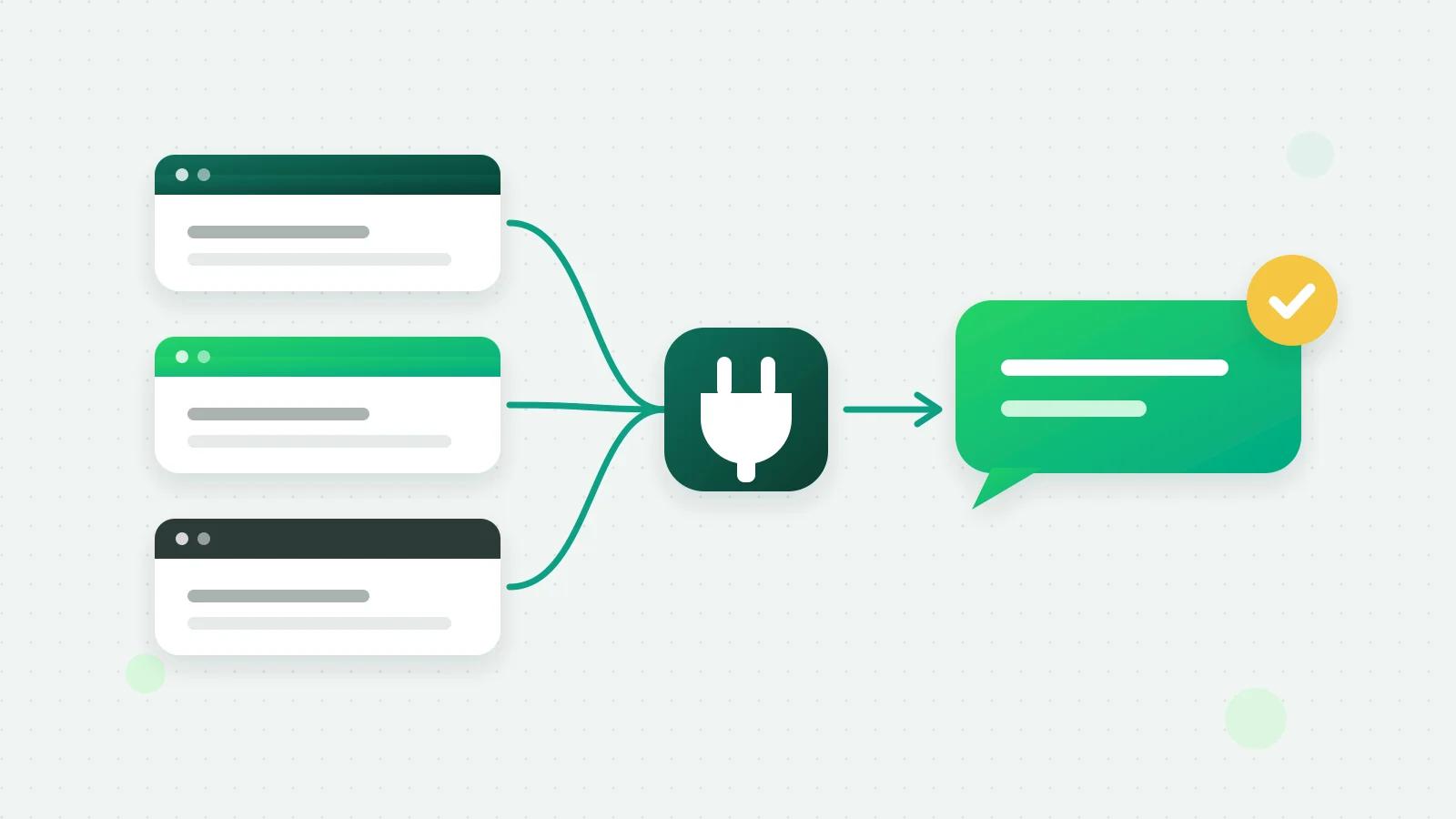
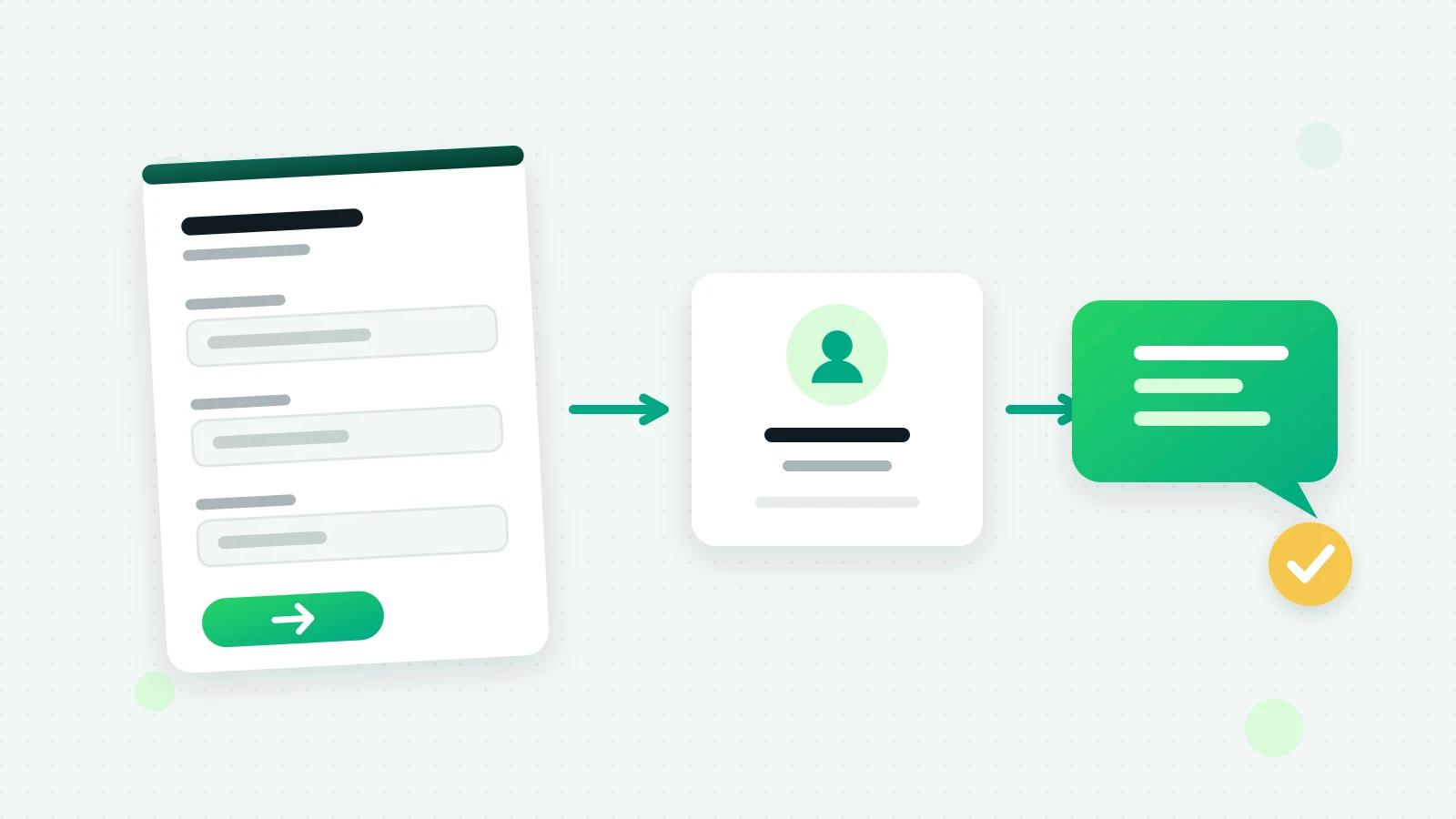
“Google Form to WhatsApp” usually means one of three things: sharing the form in a chat, being told on your phone when someone fills it in, or sending that person a WhatsApp message straight away. The first is a link. The other two need the response to leave the form: from the form’s response sheet to your WhatsApp CRM as a lead, where an automation can alert your team and send an approved WhatsApp template. This guide shows each, the free way and the Zapier way, and a form built for exactly this job.
Share a Google Form on WhatsApp
Copy your form’s link and paste it in the chat, in your WhatsApp Business profile or in a status. Add one line that says what it is for and how long it takes: “Admission enquiry, takes 2 minutes”. A bare link with no reason gets ignored.
What an enquiry form should ask
Fewer questions get more answers. A good enquiry form format:
| Question | Why |
|---|---|
| Name | To greet them |
| WhatsApp number, with country code | The one field you cannot do without |
| What they are interested in | One choice from a short list |
| When they want it | A date or “this month / later” |
| Anything else | One optional long answer |
| “May we contact you on WhatsApp?” | A tick box, never ticked in advance |
Leave out what you can ask in the chat later.
Google Form to WhatsApp: send each response into your CRM
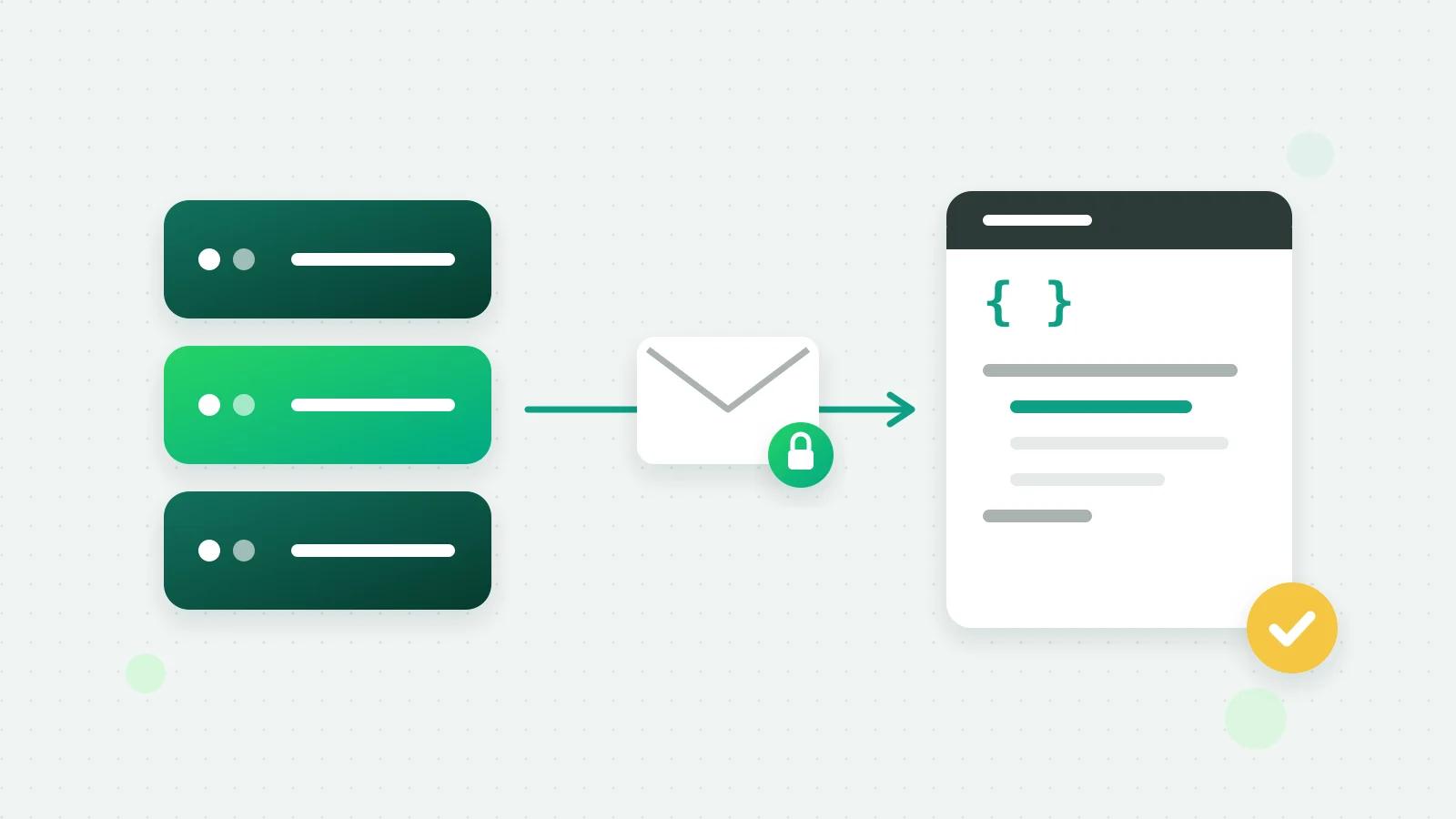
Every Google Form can save its responses to a Google Sheet. From that sheet, a short Apps Script posts each new row to your CRM. In Fliok, that is the lead capture link (Settings → Sales pipeline → Lead capture), on the Basic plan and above:
- 1Link the form to a response sheet and open that sheet.
- 2Open Extensions → Apps Script, paste the script from Fliok’s setup guide with your capture link in it, and save. Row 1 must be headers such as Name, Phone and Email.
- 3Add a trigger: the function sendLead, from the spreadsheet, On form submit.
- 4Submit a test response. It arrives in Fliok as a lead with the source Google Sheets. A column named like one of your contact fields is saved to that field, and the other answers are kept on the lead’s timeline.
A number already in your CRM is updated with a “came in again” line, not added twice. The capture link works like a password, so only admins and owners can see it. It costs nothing at Google’s end beyond the sheet you already have.
Get a notification when the form is filled
With the response in Fliok, an automation decides what happens next. Create one with the trigger A new lead arrives, limited to the source Google Sheets, and add:
- Notify the team: the owner, the admins or one person get a notification in Fliok, and on their phone if they have turned notifications on.
- Create a follow-up task: “Call within the hour”, given to the lead’s owner.
- Assign: share new leads among your team in turn, by your routing rules.
Fliok tells your team in the app and by phone notification; it does not send the alert as a WhatsApp message to your own number.
Send the person a WhatsApp message automatically
Add the action Send a WhatsApp template to the same automation, and each person who filled in the form gets your welcome message from your business number.
- It has to be an approved template. The person has not written to you, so no 24-hour window is open: Meta allows ordinary messages only inside an open customer service window, which a customer’s own message opens (Meta: pricing (opens in a new tab)).
- Only to people who agreed. A phone number in a form is not permission. Add a contact field such as “WhatsApp OK”, give the form’s tick-box question the same name, and set the automation’s conditions so it runs only when that field says yes.
- Make it about what they asked. “Hi Ravi, thanks for your enquiry about the Class 11 batch. What time suits you for a call?” gets answers; an advertisement does not.
When they reply, the chat is already linked to the lead, and your team, a chatbot or Fliok AI can answer it.
The Zapier way
If you already use Zapier, a Google Forms (or Google Sheets) trigger followed by Webhooks by Zapier, POST to your capture link, does the same as the Apps Script, with no API key. To send the WhatsApp template from Zapier itself instead of from a Fliok automation, call Fliok’s REST API, which is on the Pro plan; the exact settings are in the Zapier guide.
Or use a form built for leads
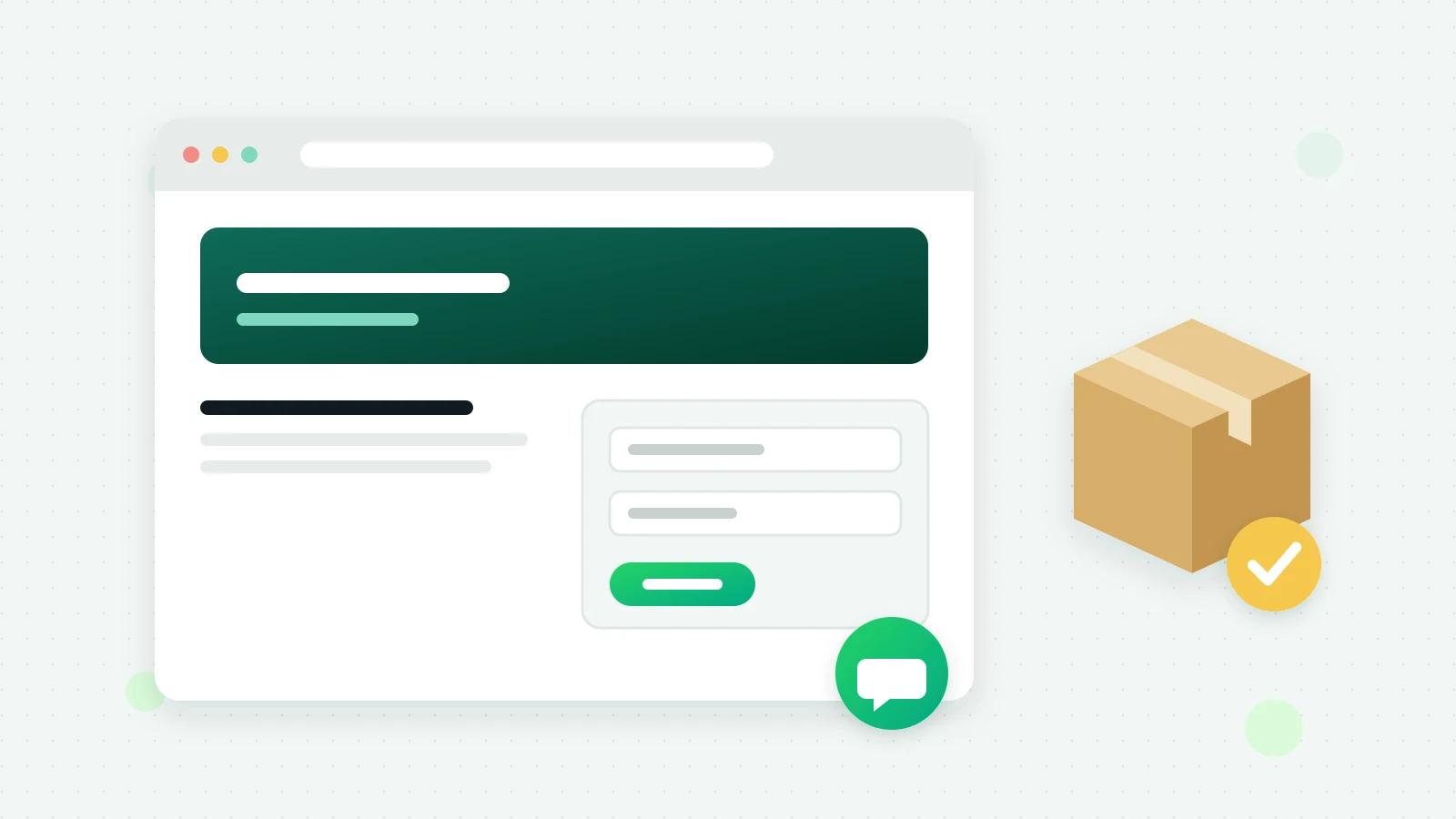
If the form exists only to collect enquiries, Fliok’s own enquiry forms skip the sheet and the script. Open Business page, then Forms, press New form and start from one of 5 starting points, such as an enquiry, a callback request or an admission enquiry.
- Each answer arrives as a lead, with the answers on its timeline, and your team is told in the bell and on their phones.
- A link and a QR code for each form, and it can be the Send an enquiry button on your digital visiting card.
- A “WhatsApp updates” tick whose sentence is the same on every form and is never ticked for the customer; only people who tick it are marked as opted in.
- A “Continue on WhatsApp” button after they send it. The customer starts that chat themselves, so your replies are ordinary messages from the first one.
- Limits: Basic keeps 5 forms and takes 1,000 answers a month; Pro keeps 25 and takes 5,000. Enterprise has no ceiling on either. One form takes at most 200 answers in a day, and a form has up to 15 questions.
Fliok does not send your customer a WhatsApp message because they filled in one of its forms. An automation of your own on a new lead still runs, as for any lead. Enquiry forms have no file uploads and no payments inside a form.
More in how to build an enquiry form, on lead capture, and for rows going the other way, out of Fliok into a spreadsheet, in connecting WhatsApp to Google Sheets and on the Google Sheets page.
Frequently asked questions
Can I get Google Form responses on WhatsApp?
You can get them into a WhatsApp CRM and be alerted on your phone. In Fliok, an Apps Script on the form’s response sheet sends each row to your capture link as a lead, and an automation notifies your team in the app and by phone notification. Fliok does not send that alert to you as a WhatsApp message.
Can I send an automatic WhatsApp message when someone fills my Google Form?
Yes, with the WhatsApp Business API. In Fliok, an automation on A new lead arrives, limited to the source Google Sheets, sends an approved template to each new lead. Send it only to people who ticked that they agree to hear from you on WhatsApp.
Is there a free way to connect Google Forms to WhatsApp?
The Apps Script route needs no paid connector: the response sheet and the script are part of Google’s own tools. On the Fliok side, the capture link and automations are on the Basic plan and above, and Meta charges for the WhatsApp templates you send.
Do I need Zapier to connect Google Forms to WhatsApp?
No. The Apps Script does the same job for free. Zapier is useful if you already use it: a Google Forms trigger and a Webhooks by Zapier POST to your capture link, with no API key needed.
What is the difference between a Google Form and a Fliok enquiry form?
A Google Form needs a response sheet and a script to reach your CRM. A Fliok enquiry form makes each answer a lead directly, with a link, a QR code, a consent tick for WhatsApp updates and a Continue on WhatsApp button. Fliok’s forms have no file uploads.
Written by the Fliok team
The team that builds the product. Plain explanations of Meta's rules and of what Fliok does with them.
Try it on your own number
The Free plan connects one WhatsApp number, with no time limit. Questions first? A person replies within one business day.