On this page
A WhatsApp plugin for WordPress puts a chat button on your site so visitors can message you in one tap. The better ones do more with the same connection: they send every form on your site to your CRM as a lead, and they send WooCommerce order updates on WhatsApp. Fliok’s WordPress plugin does all three; the chat button is free on every Fliok plan, the Free plan included. This guide covers what to look for in a WhatsApp plugin for WordPress, how to install Fliok’s, and what each part needs.
What to look for in a WhatsApp plugin for WordPress
- It does not slow your site. A button that waits on someone else’s server on every page load costs you speed.
- It keeps working when the service is down. Your site should not break because a chat tool did.
- It answers from a shared inbox, not one person’s phone, once more than one person replies.
- It respects your hours, with an offline message when nobody is there.
- It brings form leads in, so an enquiry from a contact form is not stuck in an email inbox.
- No API keys to paste into your WordPress settings, where anyone with admin access can read them.
- For shops, order updates that use approved WhatsApp templates and reach only customers who agreed.
Install Fliok’s WordPress plugin
- 1Download it from Fliok. Open Settings → Integrations → WordPress plugin and press Download plugin. It is a .zip file; do not unzip it.
- 2Upload it to WordPress. Go to Plugins → Add New → Upload Plugin, choose the file, press Install Now, then Activate.
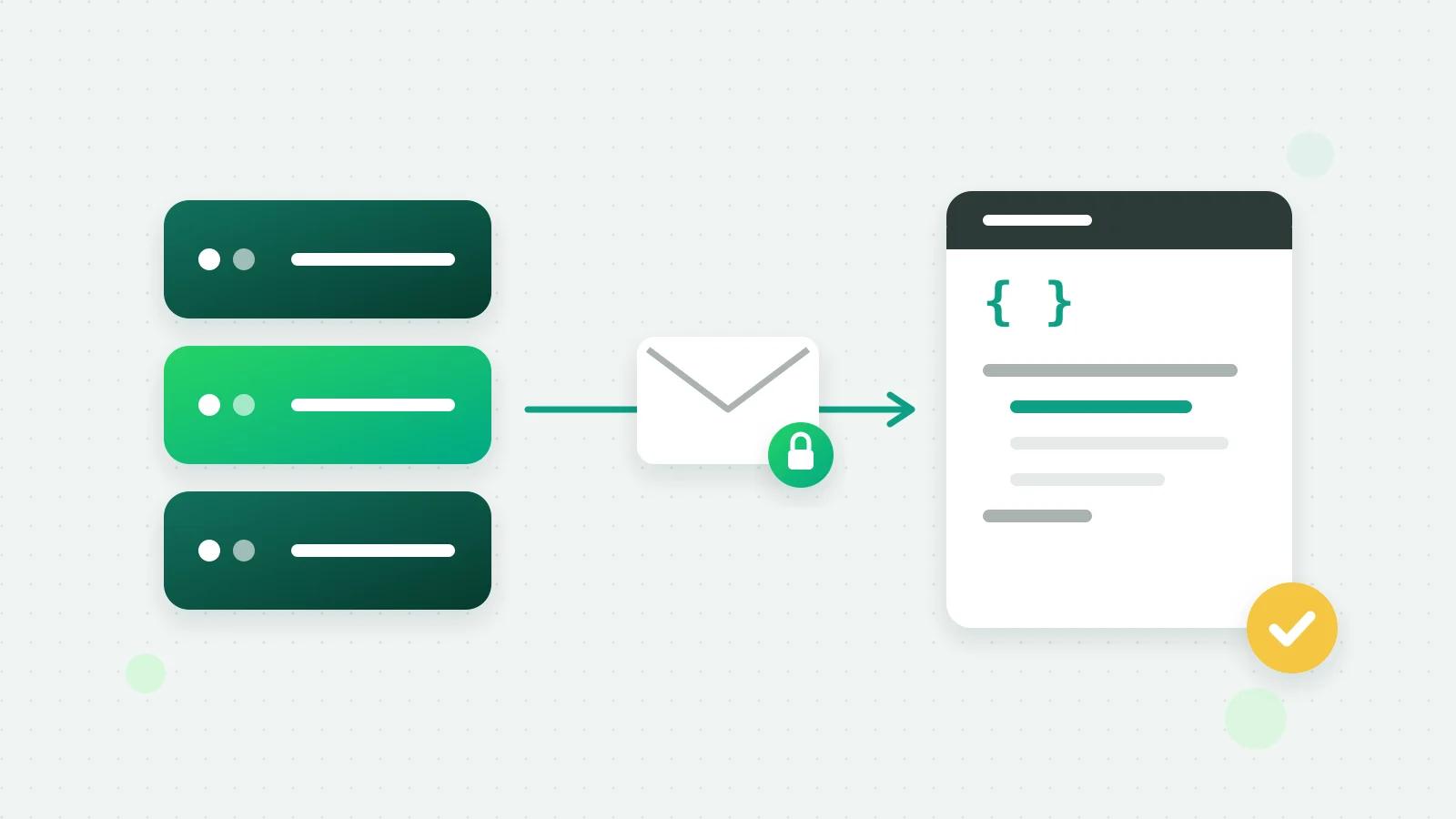
- 3Connect it. In WordPress open Settings → Fliok and press Connect to Fliok. On the page that opens, pick your workspace and approve. There are no keys to copy. If your host blocks that step, an admin can make a connection key in Fliok and paste it into WordPress under Settings → Fliok.
The chat button needs a WhatsApp number connected to Fliok.
The chat button, free on every plan
The button floats in the corner you choose and opens a small chat card with your business name, a greeting and a Start chat button into WhatsApp. The number, greeting and colours come from Fliok. On the site’s card in Fliok you can also choose:
- Where it shows: every page, only some, or everywhere except some, by page address, post type or category; and on phones, computers or both.
- Your hours: outside them, show an offline message or hide the button.
- Departments: several buttons in the card, such as Sales and Support, each with its own first message.
- A different greeting on particular pages.
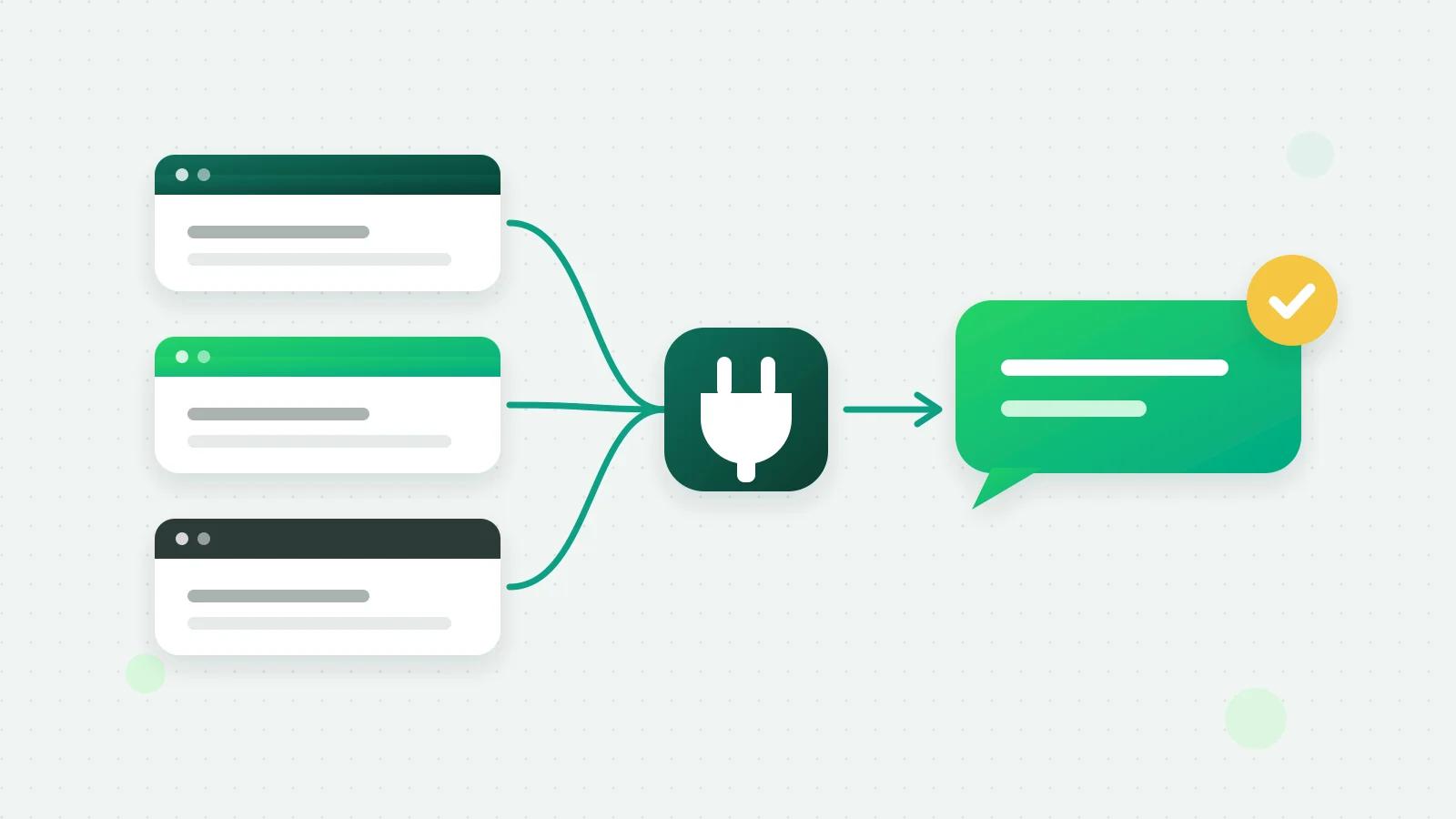
The plugin draws the button from a copy it keeps, so your pages never wait for Fliok, and the button keeps working if Fliok cannot be reached. It works with full-page caching. The plugin also adds a WhatsApp button block, a QR code block and shortcodes, and on WooCommerce product pages an “Ask on WhatsApp” button whose first message names the product.
Every form on your site becomes a lead
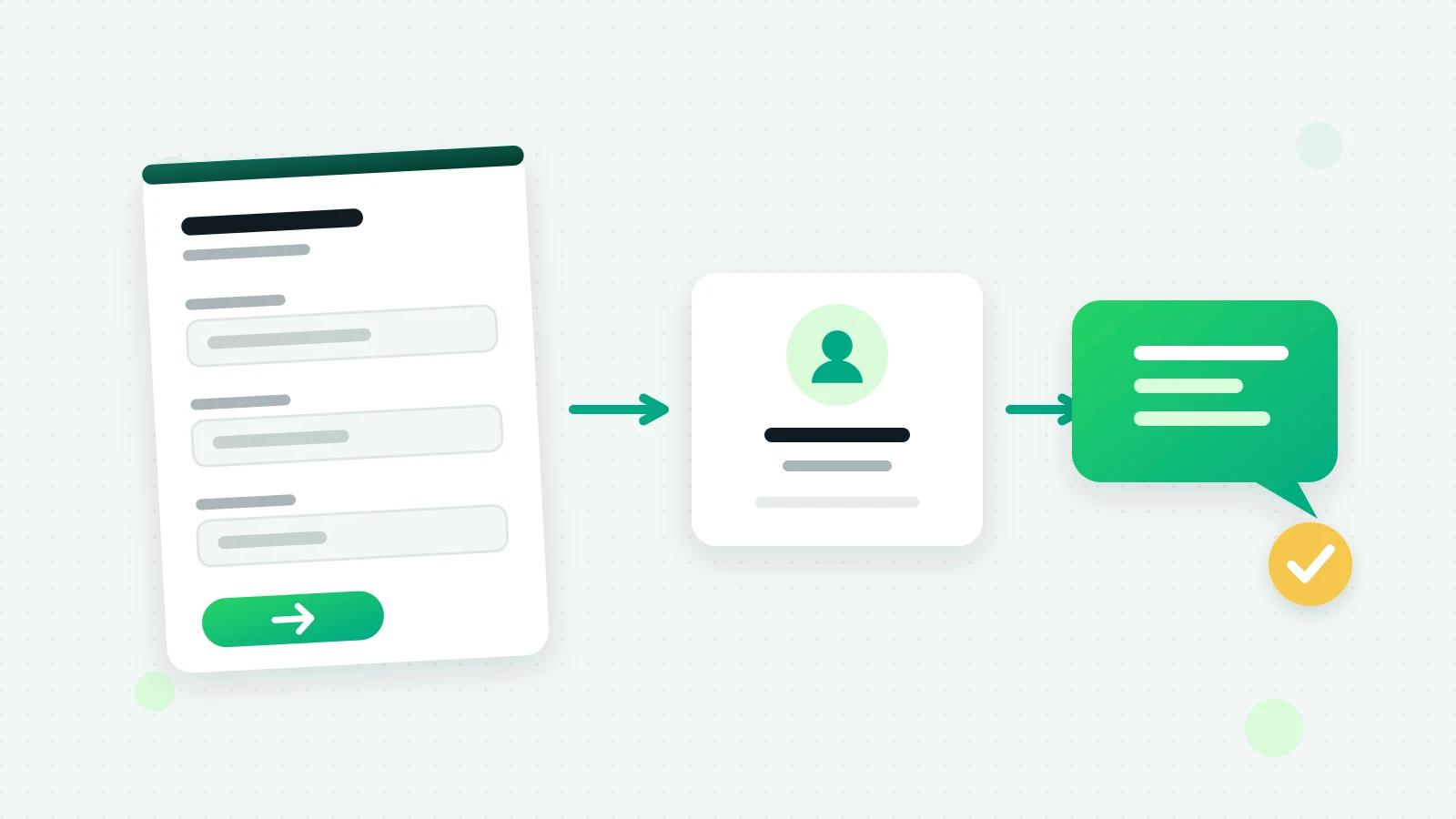
On the Basic plan and above, the plugin sends form entries to Fliok’s CRM. It works with Contact Form 7, WPForms, Gravity Forms, Elementor Pro forms, Fluent Forms, Ninja Forms, Formidable Forms, Forminator, JetFormBuilder, Everest Forms, MetForm, Kadence Forms and WS Form.
- The phone, name, email and message are found automatically, and you can map each form’s fields yourself once it has been submitted.
- Only entries with a phone number that can be a WhatsApp number become leads. A number already in your CRM is updated, not added twice.
- A “WhatsApp” consent checkbox on the form is recorded in Fliok as that customer’s opt-in.
Then make it a conversation. An automation on A new lead arrives, limited to your website, can send a welcome template to people who ticked the consent box and create a call task for your team.
WooCommerce order updates on WhatsApp
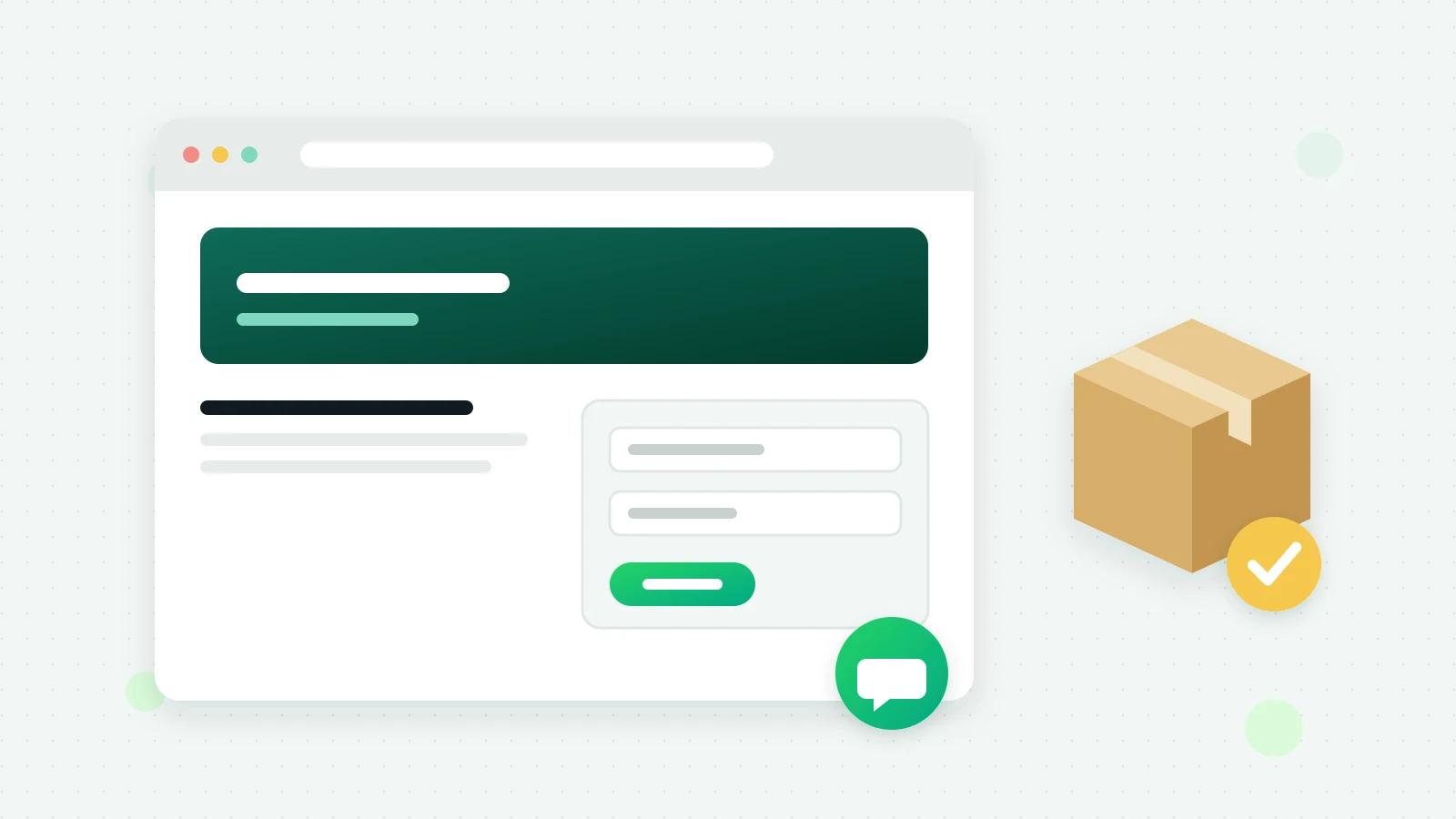
Also on Basic and above, the plugin connects WooCommerce:
- Order statuses: placed, paid, completed, cancelled and your own statuses, such as “Out for delivery”. You choose which approved template each one sends.
- Shipped, with tracking, from the plugin’s box on the order screen or the shipment-tracking plugin you already use.
- Refunds, full or partial.
- Abandoned-cart reminders, only for shoppers who typed a phone number and ticked the WhatsApp box at checkout, never after 24 hours, with a link that refills their cart.
Order messages use your own approved templates, and Meta’s per-message charges apply to them. For order messages from Shopify too, see WhatsApp order notifications for Shopify and WooCommerce.
Test it before you rely on it
- 1Open your site on a phone and on a computer, check that the button shows where you chose, and start a chat. It should arrive in Fliok’s inbox.
- 2Submit each form once with a real phone number, and find the lead in Fliok with its source.
- 3Tick the WhatsApp box on a form, and check that the lead shows as opted in.
- 4On a shop, place a test order to your own number and watch the order message arrive.
- 5Look outside your hours, and check that the offline message or the hidden button behaves as you set it.
What it costs
| Part | Plan |
|---|---|
| The plugin itself | Free to download from Fliok |
| Chat button, buttons and QR blocks | Every Fliok plan, Free Forever included |
| Form leads | Basic and above |
| WooCommerce order messages and cart reminders | Basic and above, plus Meta’s per-message charges |
Not on WordPress?
Any other site can paste Fliok’s self-contained chat snippet before the closing body tag, on every plan; see how to add a WhatsApp chat button to your website and the website chat button. Forms on other sites can post to your lead capture link, and a Google Form can too; see Google Form to WhatsApp.
Every step is on the WordPress plugin page and in the help answer; the store side is on the WooCommerce page.
Frequently asked questions
Is there a free WhatsApp plugin for WordPress?
Yes. Fliok’s WordPress plugin is free to download from Fliok, and its chat button works on every Fliok plan, the Free Forever plan included. Form leads and WooCommerce order messages need Basic or above, and Meta charges for the order messages.
How do I add WhatsApp to my WordPress website?
Download the plugin in Fliok under Settings, Integrations, WordPress plugin, upload the .zip under Plugins, Add New, Upload Plugin, activate it, then press Connect to Fliok under Settings, Fliok in WordPress and approve. There are no keys to copy.
Which form plugins does it work with?
Contact Form 7, WPForms, Gravity Forms, Elementor Pro forms, Fluent Forms, Ninja Forms, Formidable Forms, Forminator, JetFormBuilder, Everest Forms, MetForm, Kadence Forms and WS Form. Only entries with a phone number become leads.
Will a WhatsApp plugin slow down my WordPress site?
Fliok’s plugin draws the button from a copy it keeps, so your pages do not wait for Fliok, and the button keeps working if Fliok cannot be reached. It works with full-page caching.
Can it send WooCommerce order updates on WhatsApp?
Yes, on Basic and above: placed, paid, completed, cancelled, shipped with tracking, refunds and your own statuses, each with an approved template you choose, plus cart reminders for shoppers who ticked the WhatsApp box at checkout.
Do I need API keys to connect the plugin?
No. Press Connect to Fliok in the plugin, pick your workspace and approve. Only if your host blocks that step does an admin make a connection key in Fliok and paste it into WordPress under Settings, Fliok.
Written by the Fliok team
The team that builds the product. Plain explanations of Meta's rules and of what Fliok does with them.
Try it on your own number
The Free plan connects one WhatsApp number, with no time limit. Questions first? A person replies within one business day.