On this page
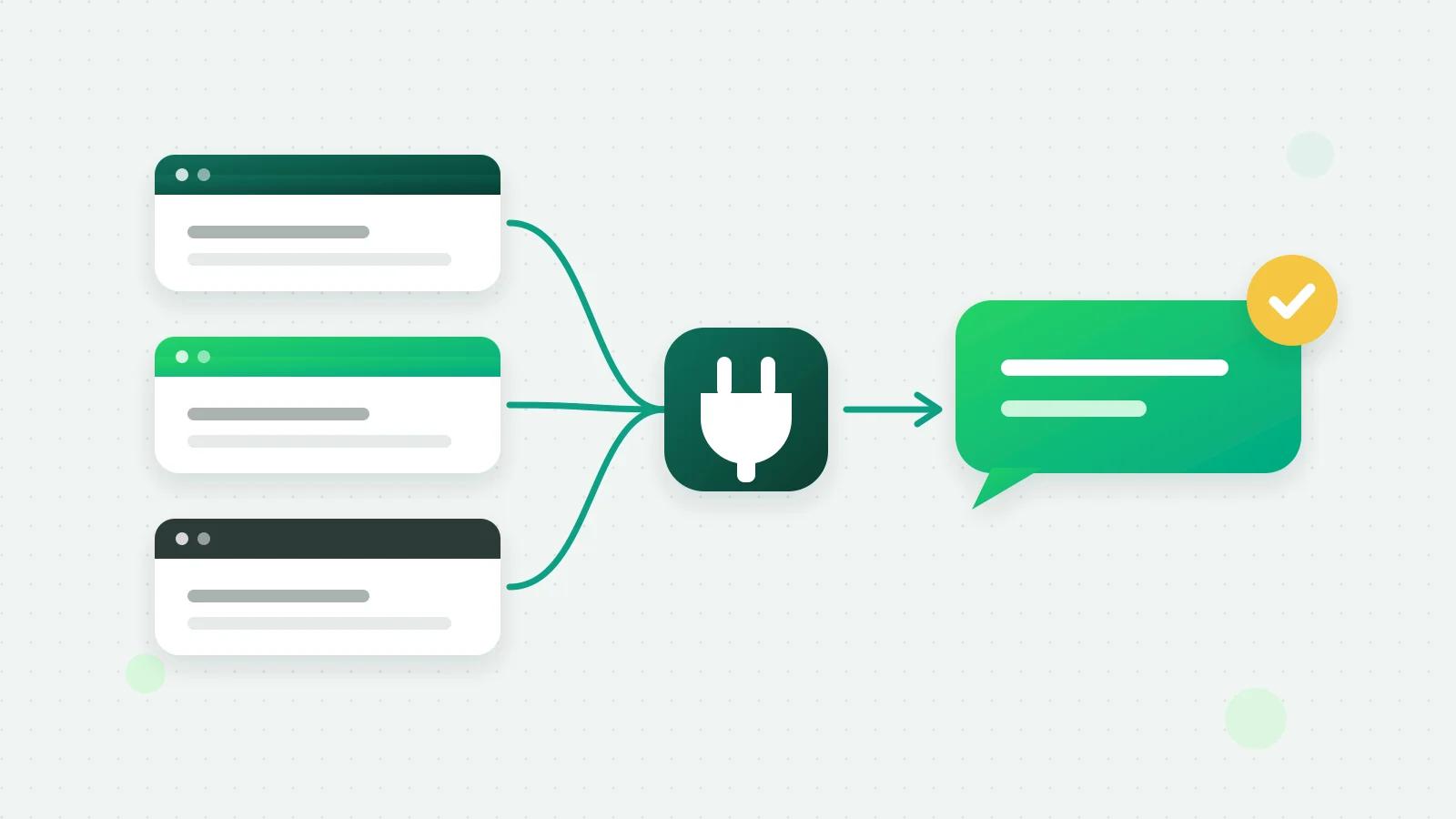
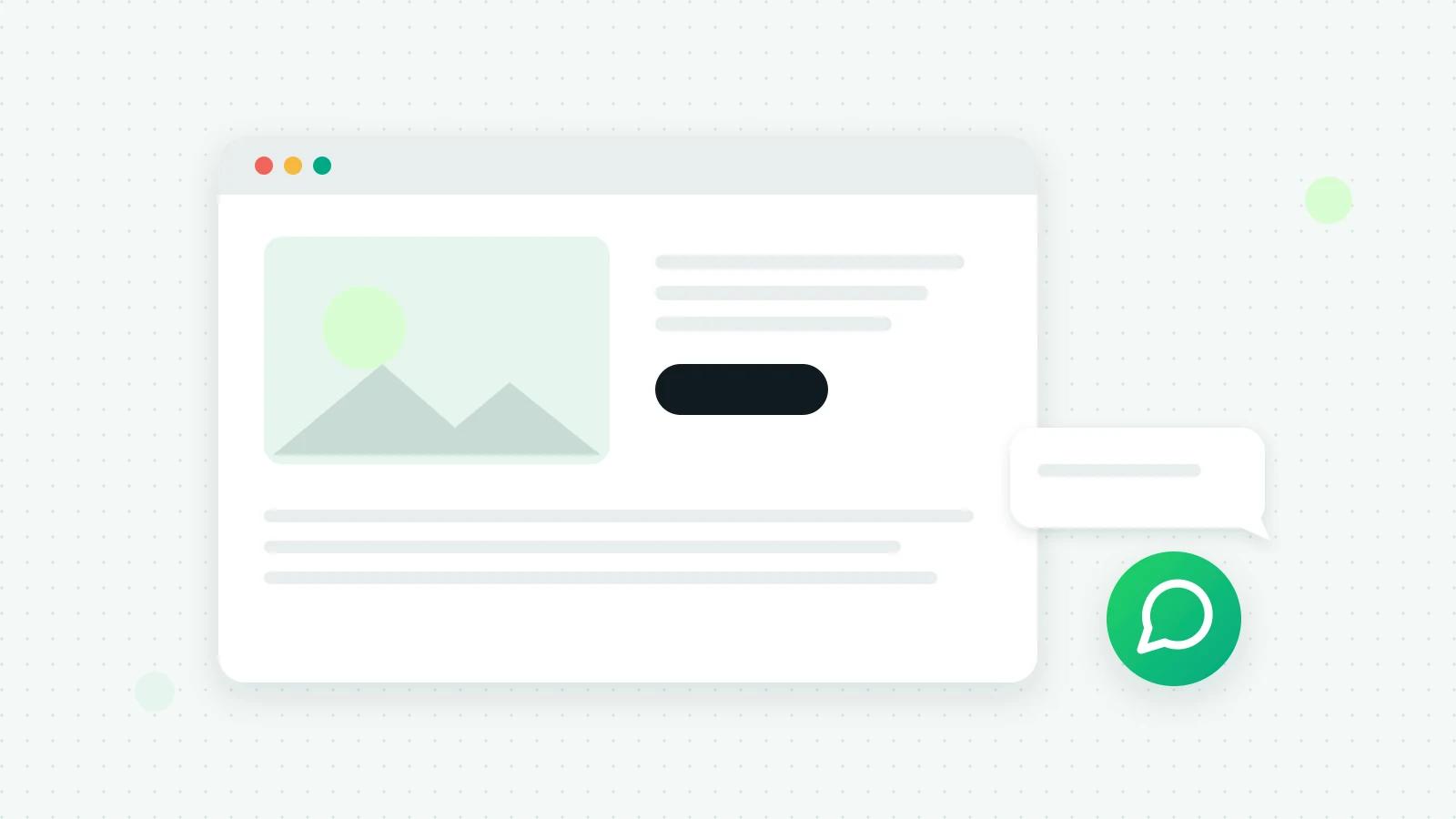
The simplest WhatsApp chat button is a link to wa.me followed by your number in international format, with an optional pre-filled message, inside a button that floats in the corner of your site. You can write it by hand in HTML, use a WordPress plugin, or build one in Fliok, which gives you a self-contained snippet with your business name, greeting and colour, and sends every chat it starts to your shared inbox.
How a WhatsApp chat link works
WhatsApp’s click-to-chat links open a chat with a number, on the phone or on WhatsApp Web (How to use click to chat (opens in a new tab)):
- The link: https://wa.me/ followed by the full number in international format, without the +, spaces, brackets, dashes or a leading zero. For an Indian number, that is 91 and then the 10 digits.
- A pre-filled message: add ?text= and the message, URL-encoded, so the customer only has to press send.
For example, https://wa.me/919876543210?text=Hi%2C%20I%27d%20like%20a%20quote opens a chat that already says “Hi, I’d like a quote”.
A plain HTML button
If you can edit your site’s HTML, this is a complete floating button. Put it just before the closing body tag and change the number and the message:
<a href="https://wa.me/919876543210?text=Hi%2C%20I%20have%20a%20question"
   target="_blank" rel="noopener" aria-label="Chat with us on WhatsApp"
   style="position:fixed;right:20px;bottom:20px;z-index:50;padding:12px 18px;
          border-radius:999px;background:#25d366;color:#fff;font:600 15px sans-serif;
          text-decoration:none;box-shadow:0 4px 14px rgba(0,0,0,.2)">
  Chat on WhatsApp
</a>
It works, but it is just a link: no greeting, no business name, and no record of which page the visitor was on.
Fliok’s chat button and chat card
In Fliok, open Settings → Links, QR codes & website (or Integrations → Website button, links & QR). It works on every plan, including Free Forever, once a number is connected. Choose one of two:
- Chat widget: a small card that opens from a floating button, with your business name, a line under it, your welcome message and a start-chat button. You choose the colour, the corner, whether it opens by itself after 5 to 60 seconds, and the message the visitor starts with.
- Simple button: a floating button with your text, in the corner you pick, that can appear after a few seconds.
Switch on Tell me which page they were on and the visitor’s message starts with the page they came from, such as “(from yoursite.com/pricing)”, so your team knows what they were reading. Only the page path is added, never anything after a question mark.
Copy the snippet and paste it before the closing body tag. It is self-contained and loads nothing from Fliok’s servers, so your pages never wait on us and the button keeps working if we are unreachable. The same page makes wa.me links and QR codes for print, packaging and your shop counter.
Adding it to WordPress
You have two choices.
- Paste the snippet into your theme’s footer, or into any plugin that adds code before the closing body tag.
- Use the Fliok WordPress plugin. In Fliok, open Settings → Integrations → WordPress plugin and press Download the Fliok plugin. In WordPress, go to Plugins → Add New → Upload Plugin, install and activate it, then open Settings → Fliok and press Connect to Fliok. There are no API keys to copy.
The plugin draws the chat button from a cached copy, so it keeps working even if Fliok is unreachable. On Basic and above, it does more:
- Every form becomes a lead, from Contact Form 7, WPForms, Gravity Forms, Elementor Pro forms and nine other form plugins. The phone, name, email and message are found automatically, and you can map the fields yourself.
- A WhatsApp consent tick box on a form is recorded in Fliok as that customer’s opt-in.
- WooCommerce order updates go out on WhatsApp with the templates you choose; see WhatsApp order notifications for Shopify and WooCommerce.
Everything the plugin does, how to install it, and what each part needs, is in its own guide: the WhatsApp plugin for WordPress.
Turn website form leads into WhatsApp chats
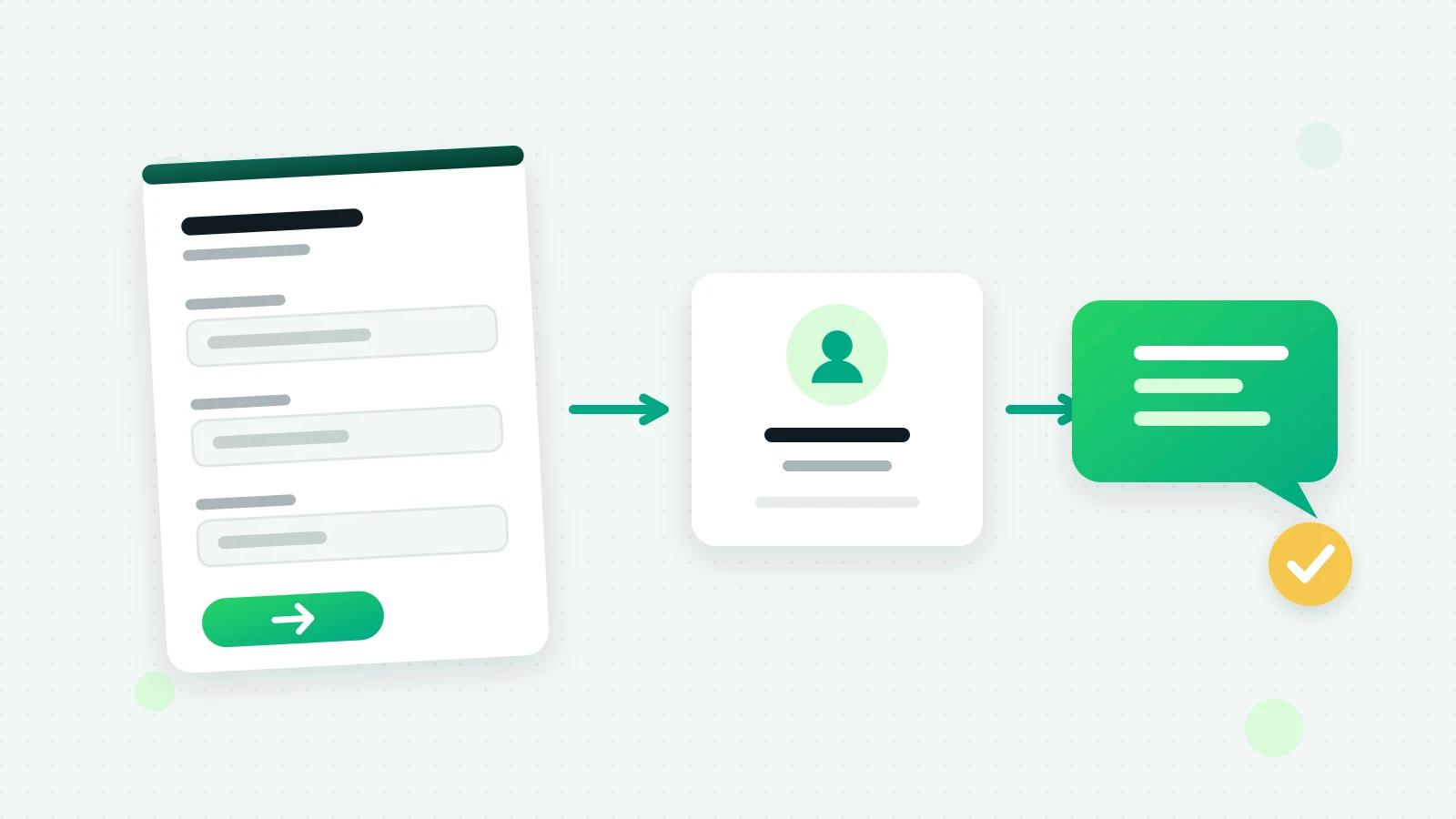
A form lead is warmest the minute it is sent. In Fliok, an automation with the trigger A new lead arrives, limited to the source Website, and the action Send a WhatsApp template greets each new lead on WhatsApp straight away. Send it only to people who ticked the WhatsApp consent box, and make the template about what they asked. Without the plugin, any form that can call a webhook can post to your lead capture link.
Which option should you use?
Swipe the table sideways to see every column.
| Hand-written wa.me link | Fliok snippet | Fliok WordPress plugin | |
|---|---|---|---|
| Works on | Any site | Any site | WordPress |
| Greeting and business name | No | Yes (chat widget) | Yes |
| Form leads into a CRM | No | Use the capture link | Built in (Basic and above) |
| Plan | None needed | Every plan | Button on every plan; forms and orders on Basic and above |
Beyond the website: links and QR codes
The same page in Fliok makes plain wa.me links and QR codes for your number, with your pre-filled message. They work wherever a website button cannot:
- Print: visiting cards, flyers, menus, standees at the counter.
- Packaging and invoices: “Questions about your order? Scan to chat.”
- Social profiles: your Instagram bio, Facebook Page and Google Business Profile.
- Email signatures and the footer of your newsletter.
Give each place its own pre-filled message, such as “Hi, I saw your flyer”, and you will know where each chat came from.
Common mistakes
- A number with + or a leading 0. wa.me needs the country code and the number only.
- An unencoded message. Spaces and symbols in ?text= must be URL-encoded, or the message breaks.
- Not testing on a computer. On a desktop the link opens WhatsApp Web or the desktop app; check that it lands on the right chat.
- A button nobody answers. A chat button is a promise; set an away message for the hours nobody is there.
Tips for a button people use
- Pre-fill a useful first message, such as “Hi, I’d like a quote for…”, not just “Hi”.
- Keep it out of the way of your cookie banner and your own chat tools on phones.
- Answer outside office hours with an away message that says when a person will reply.
- Put the same link everywhere: your Instagram bio, Google Business Profile, invoices and packaging.
More in the website chat button guide.
Frequently asked questions
Is a WhatsApp chat button free?
A wa.me link is free to make and use. Fliok’s chat widget and simple button work on every plan, including Free Forever. Meta charges for your replies through the API, since 1 October 2026, once a number has used its 1,000 free service messages of the month.
How do I add a WhatsApp button to a WordPress website?
Paste a chat button snippet into your theme’s footer, or install the Fliok WordPress plugin from Settings, Integrations, WordPress plugin, then press Connect to Fliok in WordPress. The plugin also turns your forms into leads on Basic and above.
Will a WhatsApp button slow down my website?
Fliok’s snippet is self-contained and loads nothing from our servers, and the WordPress plugin draws the button from a cached copy, so neither waits on Fliok.
Can I see which page a visitor chatted from?
Yes. With Tell me which page they were on switched on, the visitor’s first message includes the page path, such as (from yoursite.com/pricing).
Where do chats from the button go?
The button opens WhatsApp with your connected number, so each chat arrives in your shared inbox like any other, where your team, a chatbot or the AI agent can answer. See the help answer.
Written by the Fliok team
The team that builds the product. Plain explanations of Meta's rules and of what Fliok does with them.
Try it on your own number
The Free plan connects one WhatsApp number, with no time limit. Questions first? A person replies within one business day.