On this page
- Why a digital visiting card instead of only a paper one
- What to put on your digital visiting card
- How to make a free digital visiting card in Fliok
- What is free, and what comes with a paid plan
- Print the QR code so it scans
- Where to share your digital visiting card
- Know whether it works
- What a business page is not
- Frequently asked questions
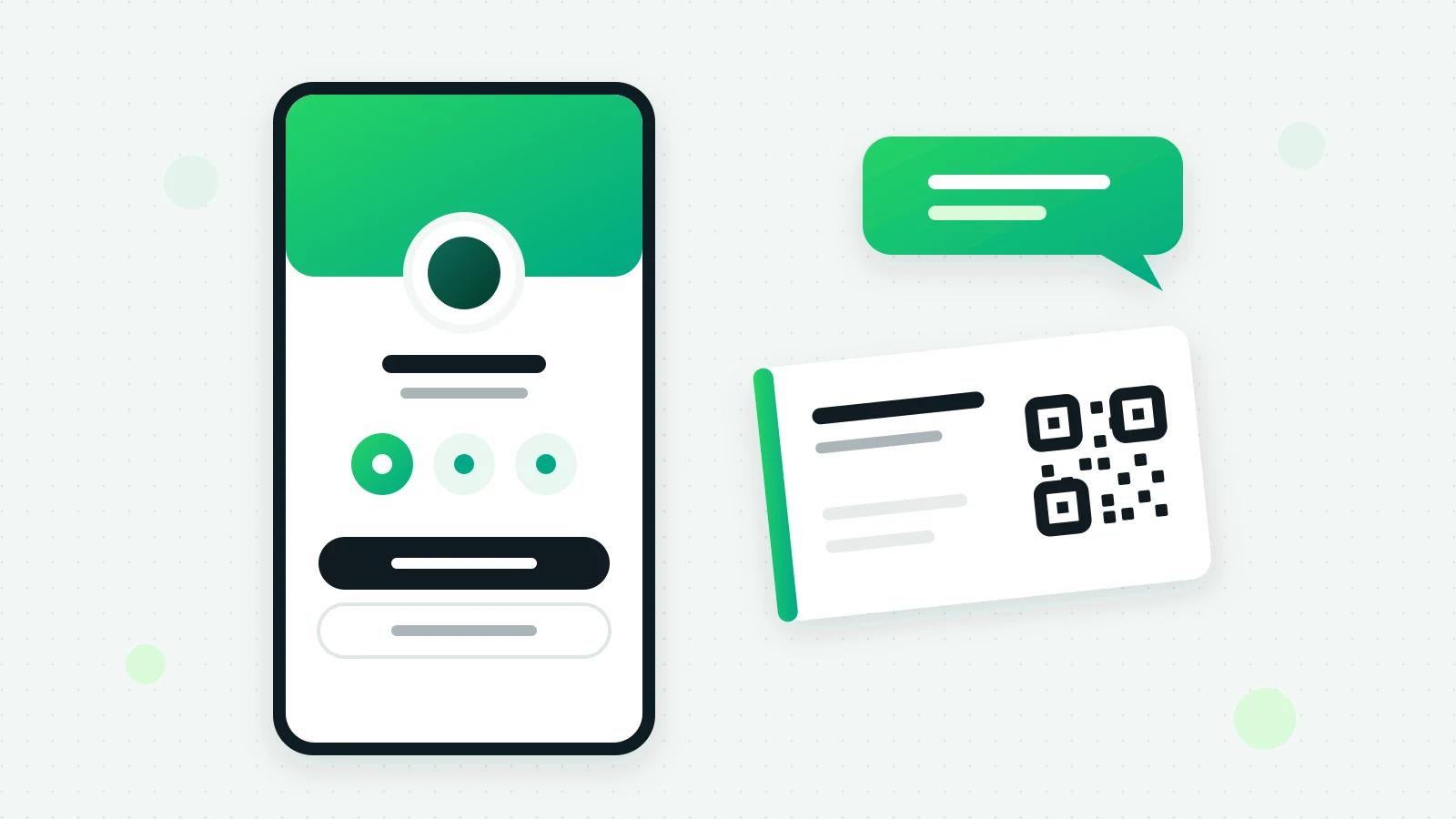
A digital visiting card is one web page about your business that opens from a link or a QR code: your name, what you do, and buttons to chat on WhatsApp, call you and find you. You can make a digital visiting card free with Fliok’s business page, on every plan, the Free plan too. This guide covers what to put on it, how to make it step by step, how to print its QR code so it scans, and where to share it.
Why a digital visiting card instead of only a paper one
A paper card is easy to lose and impossible to update. When your number, your hours or your address changes, every card you handed out is wrong. A digital visiting card is one address that always shows what is true today, and it does what paper cannot:
- One tap to chat or call, instead of saving a number first.
- Directions from the customer’s own maps app.
- Your links: your Instagram, your catalogue, a booking link or an enquiry form.
- Updated in a minute, with the same link and the same QR code.
Keep the paper card. Print the QR code on it, and the two work together.
What to put on your digital visiting card
- 1Your business name, exactly as customers know it.
- 2One line about what you do, in the customer’s words: “Bridal make-up and hair in Kolkata”, not “Beauty solutions”.
- 3Your address and hours, if people visit you.
- 4One main button: usually Chat on WhatsApp. Then Call and Get directions.
- 5Two or three links, not twelve: what people ask for most.
- 6Nothing that goes stale: no offer that ends next week, no price list you will forget to change.
How to make a free digital visiting card in Fliok
- 1Open Business page in the menu. An admin or the owner sets it up.
- 2Check what it says about you: your name, the line about what you do, your address and your hours.
- 3Switch on the buttons you want. A button appears only when it is switched on and has something behind it: Chat on WhatsApp needs your connected number, Call needs the number you type, and Get directions needs your address.
- 4Add your own links. You can add 2 on Free and 6 on Basic and above; each must start with https://, and visitors see the name of the site next to it.
- 5Look at the preview. The right side of the screen shows your page exactly as a visitor will see it while you type.
- 6Press Save, then Publish. Nothing is public until you press Publish, and Unpublish takes it down at once.
- 7Open the Share tab and copy your link, which looks like fliok.com/b/your-name, or download the QR code.
To publish, your workspace needs its own WhatsApp number connected to Fliok. You can prepare the page before that.
What is free, and what comes with a paid plan
Swipe the table sideways to see every column.
| On the page | Free | Basic and above |
|---|---|---|
| Your page, link and QR code | Yes | Yes |
| Chat on WhatsApp, Call, Get directions, catalogue | Yes | Yes |
| Links of your own | 2 | 6 |
| An enquiry form whose answers become leads | No | Yes |
| A UPI QR for people who want to pay you | No | Yes |
| Book a time, with Bookings switched on | No | Yes |
| Letting search engines list the page | No | Yes |
A payment to your UPI QR goes from the customer’s UPI app straight to you. Fliok does not receive the money and is not told about it, so ask the customer to let you know once they have paid.
Enquiry forms and Book a time come with monthly allowances. Basic keeps 5 forms and takes 1,000 answers a month across them, and Pro keeps 25 and takes 5,000. Book a time is part of Bookings, which comes with a monthly allowance of bookings: 500 on Basic, 2,500 on Pro and unlimited on Enterprise. Moving a booking does not count again, and a time held for an advance that never came does not count.
Print the QR code so it scans
The Share tab gives the QR code as a picture for your phone and as an SVG file a print shop can use at any size without blurring.
- Give the print shop the SVG, not a screenshot.
- Keep it large enough. We suggest at least 2 cm across on a visiting card, and larger on a standee or a counter card.
- Leave a white margin around it, and print it dark on light.
- Say what it does beside it: “Scan to chat on WhatsApp” or “Scan for our page”.
- Test it before you print a hundred: with two different phones, from the distance people will stand.
If you change your page’s address later, the old address keeps opening your page and is never given to another business, so a printed QR code never stops working. A workspace can hold 5 addresses in all.
Where to share your digital visiting card
- Your Instagram bio and your WhatsApp Business profile.
- Your paper visiting card, flyers, menus and packaging, as the QR code.
- Your shop counter, on a small standee.
- Your email footer and your invoices.
- Directory listings, where you can add a website link.
Know whether it works
The Visits tab counts how often your page was opened over the last 30 days, how many of those visits came from the QR code, and the taps on each button. It counts without cookies or tracking scripts and keeps nothing about who visited. A chat that starts from your page is marked as a lead from your business page, so you can see which conversations it brought in.
What a business page is not
It is one page that sends people to you. It is not a website builder: there are no themes, no custom domain and no extra pages. It is not an online store, and it cannot be embedded in another website. Answers to your review requests are not shown on it. Every page has a Report link, and Fliok can take down a page that breaks its rules.
More on the business page and in how to make your business page. To add a form for enquiries, see enquiry forms and the Google Form to WhatsApp guide. If you already have a website, a chat button does the same job there; see how to add a WhatsApp chat button to your website.
Frequently asked questions
How can I make a digital visiting card for free?
In Fliok, open Business page, check your name and the line about what you do, switch on the buttons you want, then press Save and Publish. It is on every plan, the Free plan too, and gives you a link and a QR code. Publishing needs your own WhatsApp number connected to Fliok.
What is the difference between a digital visiting card and a website?
A digital visiting card is one page with your details and buttons to reach you. A website can have many pages, a design of your own and a domain of your own. Fliok’s business page is the first: no themes, no custom domain and no extra pages.
Can I put a WhatsApp QR code on my business card?
Yes. Print the QR code of your business page, whose main button is Chat on WhatsApp, or a QR code of a plain wa.me link to your number. Give the print shop the SVG file, keep a white margin around the code, and test it with two phones before printing.
Will my QR code stop working if I change my page’s address?
No. In Fliok an address you leave stays yours and still opens your page, and it is never given to another business. A workspace can hold 5 addresses in all.
Can customers pay me from my digital visiting card?
On Basic and above, the page can show a QR code of your UPI ID. The customer pays from their own UPI app, straight to you; Fliok does not receive the money and is not told about it.
Written by the Fliok team
The team that builds the product. Plain explanations of Meta's rules and of what Fliok does with them.
Try it on your own number
The Free plan connects one WhatsApp number, with no time limit. Questions first? A person replies within one business day.