On this page
A salon appointment booking system has one job: let a client pick a service, a stylist and a time that is really free, and then remind them so they turn up. For a salon that means a calendar for each stylist or chair, a length for each service, a gap to clean up between clients, and reminders on WhatsApp, where your clients already talk to you. This guide shows what such a system must handle, how to set one up with Fliok’s booking page, and how to run the day once bookings come in from a link.
What a salon booking system has to handle
A salon is harder to book than a single desk, because several people work at once and every service takes a different time:
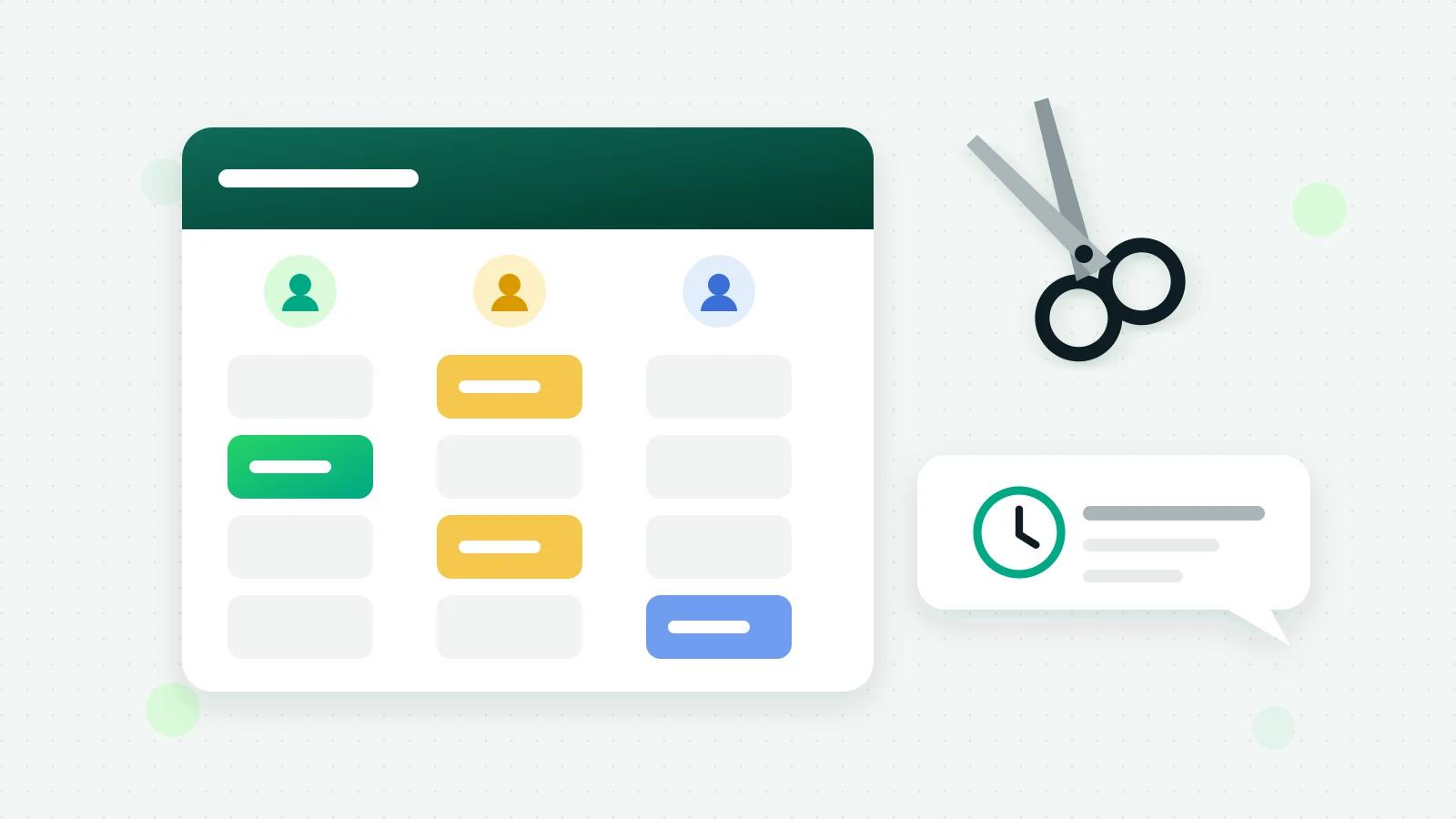
- Each stylist has a calendar of their own, with their own days off and hours.
- Each service has its own length. A haircut is not a colour, and a bridal trial is not a threading.
- Not everyone does everything. Only some people do colour or nails.
- A gap after each client to clean up and set up the chair.
- Clients who do not mind who, and should get whoever is free.
- Walk-ins, which must never land on a booked chair.
- Reminders, because a forgotten appointment is an empty chair.
A paper diary or one shared calendar can do this while the salon is small and one person takes every booking. Past that, two people answer the phone and the WhatsApp chat at once, and the clashes begin.
Plan your service menu first
Write down every service with its real length, including the time to settle in and pay, and who does it. For example:
Swipe the table sideways to see every column.
| Service | Length | Who does it |
|---|---|---|
| Haircut and styling | 45 minutes | Riya, Sana |
| Hair colour, root touch-up | 90 minutes | Sana |
| Facial | 60 minutes | Meena |
| Threading and upper lip | 15 minutes | Anyone |
A service that is always underestimated pushes every booking after it late. Be honest with the lengths, then add a gap after each booking.
How to set up a salon appointment booking system in Fliok
Bookings is part of the Basic plan and above, with a monthly allowance of bookings: 500 on Basic, 2,500 on Pro and unlimited on Enterprise. Moving a booking does not count again, and a time held for an advance that never came does not count. An admin switches it on once under Settings → Integrations → Bookings:
- 1Add your services, each with a name, how long it takes, an optional price and where it happens.
- 2Set your hours and rules. A new calendar is open Monday to Saturday, 9 am to 6 pm, with start times every 30 minutes, 2 hours of notice and bookings up to 60 days ahead. Give a day two sets of hours for a lunch break, list your closed dates and leave a gap after each booking.
- 3Add the people who take bookings, under People who take bookings: up to 50 people, or chairs and rooms. Each has their own hours inside your opening hours, their time off and the services they do. Link a person to a team member’s sign-in and they can record their own time off.
- 4Share your booking link in your WhatsApp chats, your Instagram bio and as a printed QR code at the counter. The Bookings page has the link and a QR code to download.
What your client sees
- 1They open your booking page from the link or the QR code, in their phone’s browser. There is no app to install.
- 2They pick a service, then Choose who: one of your stylists, or Anyone available.
- 3They see only the times that are free for that person and that service, pick one, and give their name and WhatsApp number.
- 4The confirmation arrives from your own WhatsApp number, naming who it is with, such as “Haircut with Riya”, and reminders follow: 1 day before and 1 hour before unless you change them.
- 5Each message has a Manage booking button to move or cancel until the booking starts. The reminders start again from the new time.
Each person takes one client at a time, and nobody is booked twice. If two people press Book on the last free time at the same moment, one gets it and the other is asked to pick another. A booking for Anyone available goes to whoever is free with the fewest bookings that day; a tie goes to the fewest that week, then to the order of your list.
Running the day
- The Calendar tab shows a day or a week, for everyone or for one stylist.
- Walk-ins: your team adds a booking with a person, with Anyone available or with No one yet, and can move it to someone else later. With the Outside working hours switch they can fit someone in late, but never into a time that is already full.
- Time off never cancels a booking. The bookings it touches are listed as Bookings to move, and you give each to someone else or move it to another day.
- After the time has passed, mark each booking Completed or No-show, so you can see which days and services clients miss.
- No-shows on long services? Ask for an advance that holds the slot; see advance payment for appointments.
- Reviews: once a visit is marked completed, the client can be asked how it went (by default the next morning); see how to ask for a Google review.
Every booking message, from the confirmation to a reminder, goes as a utility message. Meta bills its message charges to your own WhatsApp account, and Fliok adds nothing to them. The Bookings page shows how many bookings have been made this month against your plan’s allowance, and moving up to Pro raises it at once.
What it does not do
It does not sync with Google Calendar, it has no waiting list and no weekly repeat bookings, and it never moves money: an advance is paid straight to you, and a refund is sent by you. It is not a point-of-sale or a stock register.
Set it up with how to set up your booking page and letting customers pick a staff member; more on Bookings and staff calendars. For the habits that stop clashes before any software, read how to take bookings on WhatsApp without double-booking.
Frequently asked questions
What is the best way to take salon appointments on WhatsApp?
Send a booking link in the chat instead of offering times by hand. The client picks a service, a stylist and a free time, and the confirmation and reminders come back on WhatsApp. By hand, keep one calendar everyone can see and write each booking in before you confirm it.
Can each stylist have their own calendar?
Yes. In Fliok you add up to 50 people, or chairs and rooms, each with their own hours, time off and services. The booking page asks the client to choose who, with Anyone available as one of the choices, and nobody is booked twice.
Do my clients need to download an app to book?
No. The booking page opens in the phone’s browser from a link or a QR code, and the confirmation and reminders arrive on WhatsApp from your own number.
How do I reduce no-shows at my salon?
Remind the client the day before and an hour before, with an easy way to move or cancel. In Fliok reminders go 1 day before and 1 hour before by default. For long services you can also ask for an advance that holds the slot until it is paid.
Can I add walk-in clients to the same calendar?
Yes. Your team adds a booking for a person, for Anyone available or for No one yet, and can fit someone in outside working hours with a switch, but never into a time that is already full.
Written by the Fliok team
The team that builds the product. Plain explanations of Meta's rules and of what Fliok does with them.
Try it on your own number
The Free plan connects one WhatsApp number, with no time limit. Questions first? A person replies within one business day.