On this page
To ask for a Google review, send every customer the same short message soon after you have served them, with your Google review link in it, and leave the rating to them. Do not offer anything in return, do not ask only the customers you think are happy, and do not tell anyone what to write: Google’s rules forbid all three (Google: prohibited and restricted content (opens in a new tab)). This guide shows where to find your review link, gives Google review request messages to copy for WhatsApp, email and the counter, and explains how to ask everyone once, automatically, without filtering anyone out.
Get your Google review link and QR code
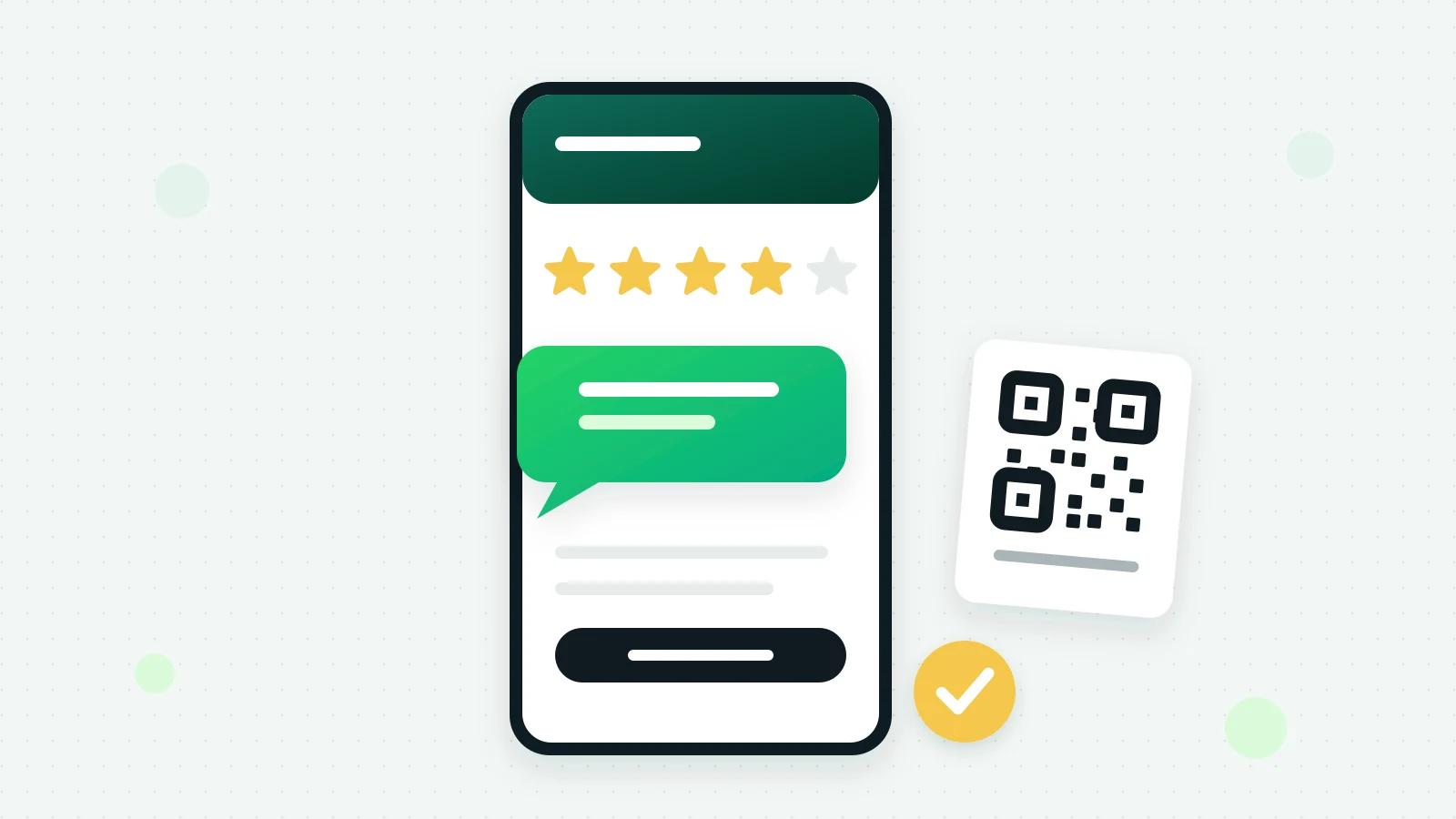
Google gives every Business Profile a link and a QR code that open its review box. Google’s own steps: go to your Business Profile, select Read Reviews, then Get more reviews, and copy the link or save the QR code. The QR code can only be made on a computer browser for now (Google: create a link or QR code to request reviews (opens in a new tab)).
Google suggests putting it on receipts, in thank-you emails, at the end of a chat and on a printed QR code in your shop, and says review requests can go by email, WhatsApp message or a Facebook post. A customer needs to be signed in to a Google Account to leave a review (Google: tips to get more reviews (opens in a new tab)).
What Google does not allow
Google’s content policy for Maps lists what a business may not do when it asks for reviews (Google: prohibited and restricted content (opens in a new tab)):
- No incentives. No payment, discount, free goods or services in exchange for a review, or for changing or removing a bad one.
- No filtering. A business may not discourage negative reviews or ask only the customers likely to be positive.
- No pressure, no script. Do not require or pressure a customer to leave a rating while they are on your premises, and do not ask for particular words in it.
So “10% off if you review us” is not allowed, nor is asking only the customers who smiled, nor “please mention our fast service”. Nor is review gating, which asks for a rating first and sends only the happy customers on to Google.
How to ask for a Google review: message samples
Send these soon after the work is done or the bill is paid, while the visit is still fresh. Ask once.
On WhatsApp, after a visit:
“Hi Kavya, thank you for coming to [Business name] today. If you have a minute, we would be grateful if you shared how it went on Google: [your review link]. Every review helps us, whatever it says.”
On WhatsApp, after a job or an order:
“Hi Varun, thank you for choosing [Business name] for your kitchen. If you would like to tell others about your experience, here is our Google review page: [your review link]. Thank you!”
In Hindi:
“नमस्ते कव्या जी, आज [Business name] आने के लिए धन्यवाद! अगर आप Google पर अपना अनुभव लिखना चाहें, तो यह लिंक है: [your review link]। आपकी हर राय हमारे लिए मायने रखती है।”
By email:
Subject: How did we do?
“Dear Swati, thank you for your order with [Business name]. If you have a moment, you can review us on Google here: [your review link]. We read every review and reply to as many as we can.”
At the counter:
“There is a QR code by the door if you would like to review us on Google, whenever it suits you.” Then let it go: no hovering, no phone held out.
When someone tells you something went wrong: fix it first, privately. Do not ask them to change their review in return for anything; Google treats that as an incentive too (Google: prohibited and restricted content (opens in a new tab)).
Make asking a habit, not a favour
- Ask everyone, the same way, at the same point: after payment, or after the visit.
- Ask once. A second and third reminder turns gratitude into a chore.
- Make it one tap. The link in the message, not “search for us on Google”.
- Reply to reviews, good and bad. Google calls a mix of positive and negative feedback more trustworthy, and suggests replying to share your side (Google: tips to get more reviews (opens in a new tab)).
- Hear the unhappy ones first. A private question “how did it go?” lets you put a problem right. Asking privately is fine; showing your Google link only to the happy ones is not.
Review requests on the WhatsApp Business API
From the WhatsApp Business app, you type the request yourself. On the API, a message sent days after a customer last wrote goes as an approved template, and Meta is specific about feedback: a feedback request counts as utility only when it names the order or interaction it is about, and a generic request for feedback is not approved as utility. A feedback message with promotional content is marketing (Meta: template categories (opens in a new tab)). So name the bill or the visit, and keep offers out.
How review requests work in Fliok
Review requests are part of Invoices & receipts and Bookings, on the Basic plan and above. A request does not count toward either one’s monthly allowance: bills are 300 on Basic, 1,500 on Pro and unlimited on Enterprise, and bookings 500 on Basic, 2,500 on Pro and unlimited on Enterprise. Both are off until an admin switches one on: open Invoices or Bookings, press Reviews and go to When to ask.
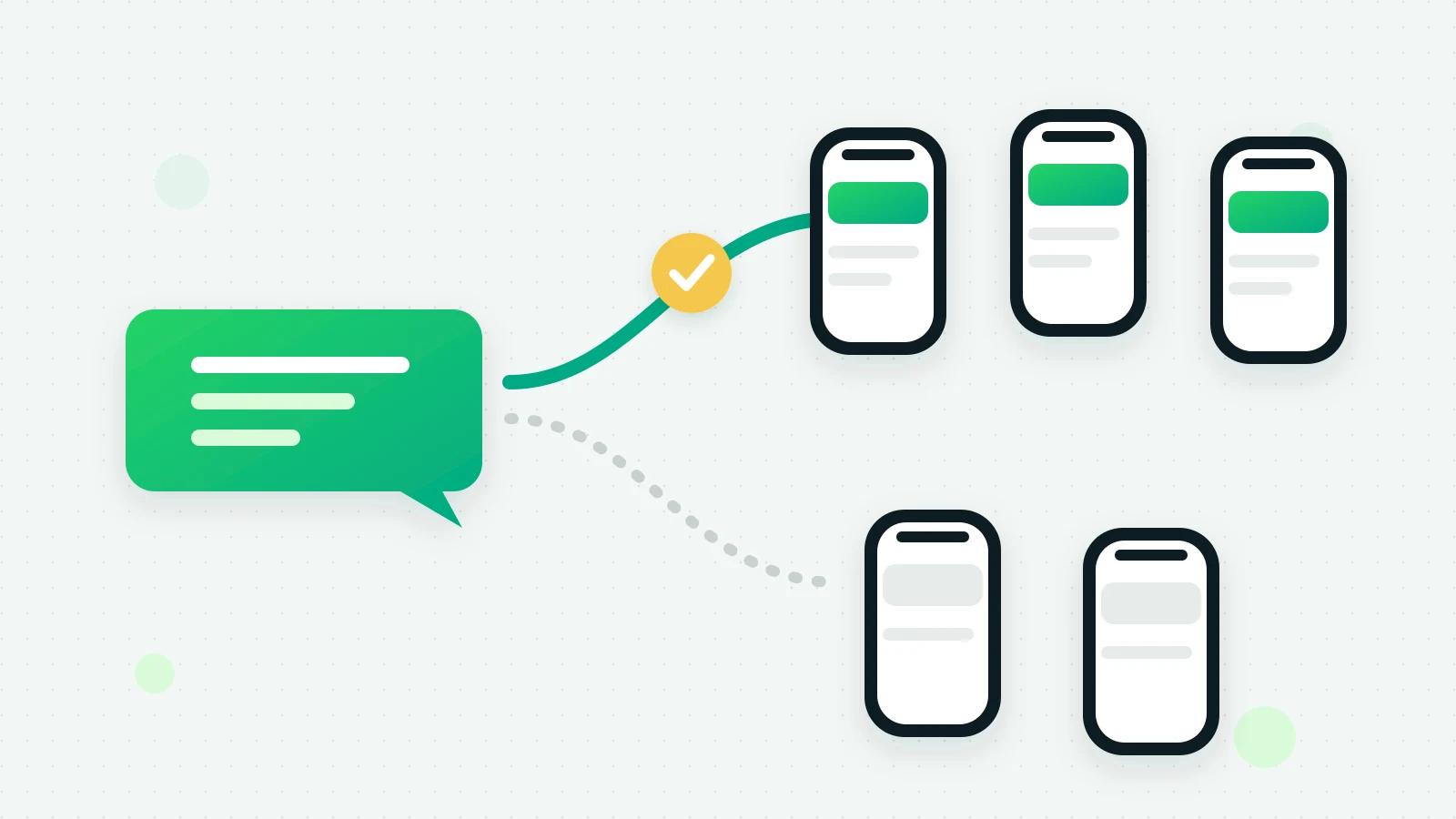
- 1After an invoice is paid, the customer is asked 2 hours later once it is paid in full. After a visit, the next morning once the booking is marked completed. You can change both, and each goes between 10 am and 7 pm in your own time zone.
- 2Once is enough: however often a customer pays or visits, they are asked at most once in 30 days.
- 3The message names that invoice or that visit, from your own WhatsApp number, with a Share feedback button. It opens a short page: a rating from 1 to 5 and a comment.
- 4Your team sees every answer on the Reviews page, with the average rating and the figures by service. A rating of 3 or lower also creates a notification and a follow-up task, so someone puts it right.
- 5Paste your Google review link, and every customer who answers is shown it, in the same words, whatever rating they gave.
That last point is on purpose. There is no setting to show your Google link only to happy customers, because Google’s rules do not allow it (Google: prohibited and restricted content (opens in a new tab)). Fliok asks and records the answer. It never writes or posts a review, offers anything for one, or hides your review link from a customer who rated low.
Some things are never asked about: a proforma or a quotation, an advance or a part-bill, the monthly bills of a recurring bill (the renewal is), and anything paid or visited before you switched requests on.
More in how review requests work and on the review requests page. To get the visits to ask about, see the salon booking guide; to put your review QR next to your chat QR, see the free digital visiting card.
Mistakes to avoid
- A discount, a gift or a lucky draw for a review.
- Leaving out the customers who look unhappy.
- “Please give us 5 stars.”
- Staff, friends or family reviewing the business.
- Three reminders to one customer.
Frequently asked questions
What should I say when asking for a Google review?
Thank the customer, name what you did for them, and give your Google review link in the same message: “If you have a minute, we would be grateful if you shared how it went on Google.” Do not ask for a rating, for particular words, or offer anything in return.
Where do I find my Google review link?
On your Google Business Profile: select Read Reviews, then Get more reviews, and copy the link or save the QR code. Google says the QR code can only be made on a computer browser for now.
Can I offer a discount for a Google review?
No. Google’s policy forbids payment, discounts, free goods or services in exchange for a review, or for changing or removing a negative one. Reviews posted for an incentive can be removed.
Can I ask only happy customers for a review?
No. Google does not allow a business to discourage negative reviews or to ask only customers who are likely to be positive. Ask everyone the same way. You may ask privately how it went, but your Google link must not be shown only to the happy ones.
Can WhatsApp review requests be sent automatically?
Yes. In Fliok a customer is asked 2 hours later once an invoice is paid in full, or the next morning once a visit is marked completed, at most once in 30 days, and everyone who answers is shown your review link whatever rating they gave.
Written by the Fliok team
The team that builds the product. Plain explanations of Meta's rules and of what Fliok does with them.
Try it on your own number
The Free plan connects one WhatsApp number, with no time limit. Questions first? A person replies within one business day.