On this page
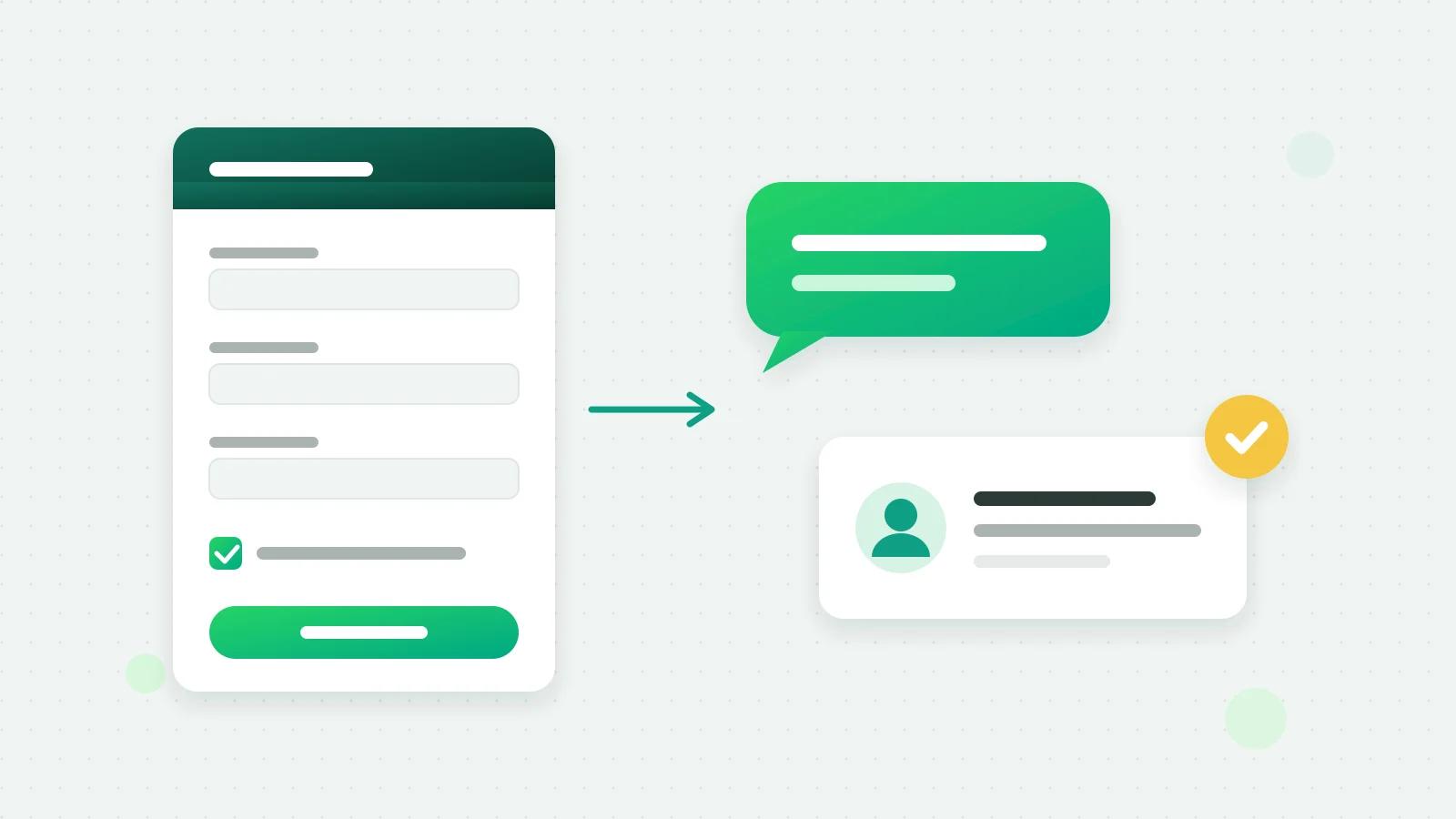
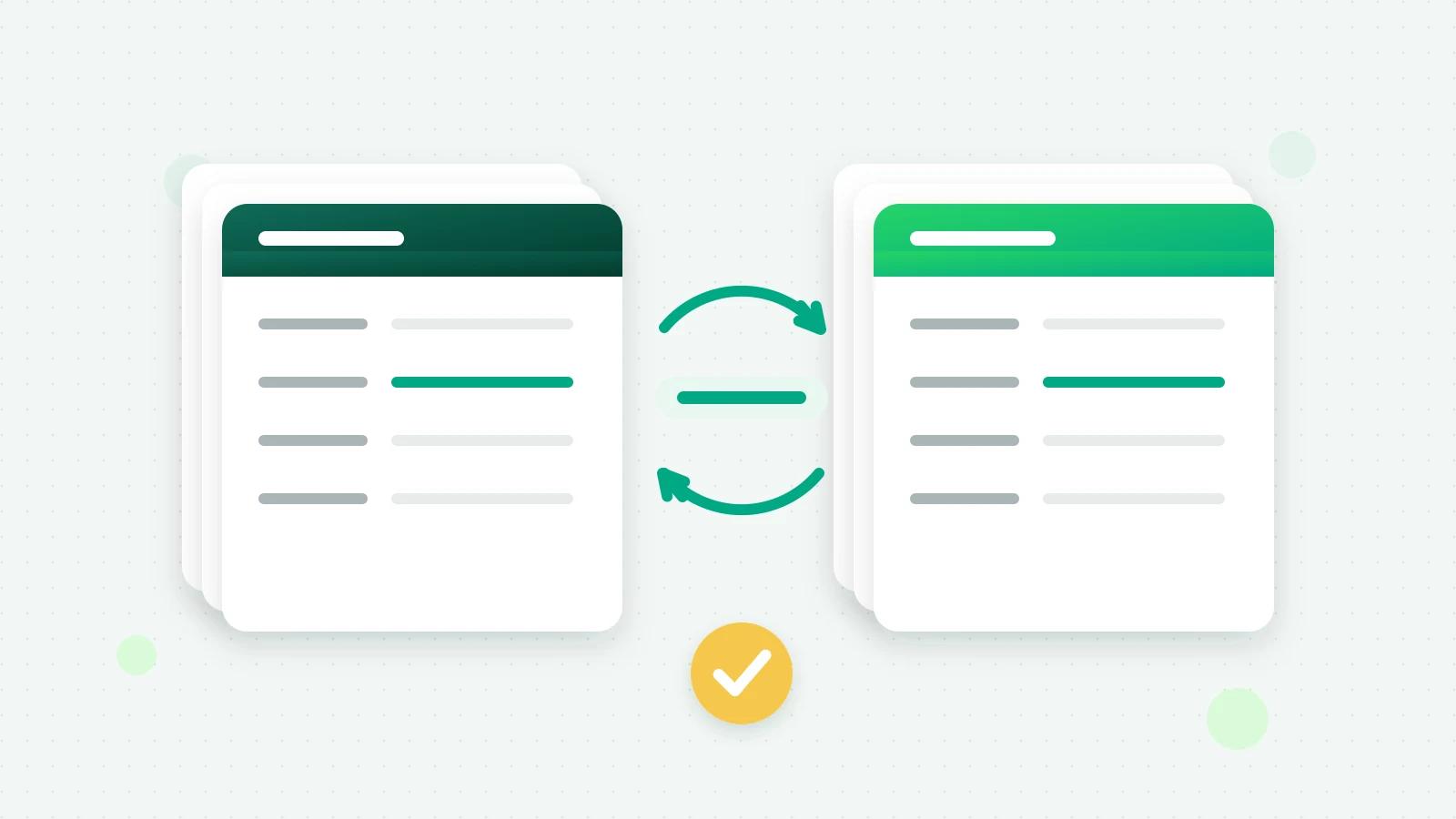
A Zoho CRM WhatsApp integration keeps your WhatsApp leads and your Zoho records the same: a new WhatsApp lead becomes a Zoho lead or contact, a change in either place reaches the other, and the same customer is never entered twice. The key to all of it is the phone number, so the match is only as good as the numbers in your CRM. This guide covers what to set up in Zoho first, how Fliok’s Zoho CRM connection works switch by switch, and what it deliberately leaves out.
What the integration is for
Sales teams that work in Zoho CRM lose WhatsApp enquiries in two ways. A lead who only ever wrote on WhatsApp never gets a record, so nobody follows up and the report undercounts. And a lead who is in Zoho gets chased by someone who cannot see what the customer said on WhatsApp. A two-way sync fixes both: every WhatsApp lead has a record, and the record shows where the conversation stands.
Before you connect: get Zoho ready
- 1Use the Zoho account your leads are in. Fliok can only reach a Zoho account that has Zoho CRM set up. An account that has never opened Zoho CRM is refused, with a message that says so.
- 2Decide: Leads or Contacts. New WhatsApp leads go to one module. Most teams use Leads and convert in Zoho as usual.
- 3Clean up phone numbers. Store them with the country code. Records without a phone number cannot be matched, and are skipped when Zoho leads come into Fliok.
- 4Give teammates Zoho users with the same email as their Fliok sign-in, if you want ownership to carry across.
- 5Check your Lead Status pick list. Each stage of your WhatsApp pipeline maps to one Lead Status.
How to set up the Zoho CRM WhatsApp integration
The Zoho CRM connection is part of Automation & CRM, on the Basic plan and above:
- 1An admin opens Settings → Integrations → Zoho CRM in Fliok.
- 2Connect with Zoho. Sign in to Zoho and approve access. It works in any Zoho data centre: Fliok finds the one your account is kept in.
- 3Choose where new leads go (Leads or Contacts) and the Lead Source written on the records Fliok creates. It starts as “WhatsApp”.
- 4Set the switches and the Lead Status for each stage, described below.
The four switches
Swipe the table sideways to see every column.
| Switch | What it does | Starts |
|---|---|---|
| Create in Zoho when a new WhatsApp lead arrives | A new lead, also from forms, the API or added by hand, becomes a Zoho record. A record with the same phone is linked instead of creating a new one | On |
| Update Zoho when the stage, owner or fields change in Fliok | Name, email, stage, owner and the latest note go to Zoho | On |
| Bring Zoho leads into Fliok | Leads added or changed in Zoho after you connected come into Fliok, matched by phone | On |
| Add WhatsApp conversations to Zoho as notes | Once a day, one short note per linked lead with the previous day’s messages | Off |
Leads imported into Fliok from a CSV go to Zoho when they next change.
Stages and Lead Status, both ways
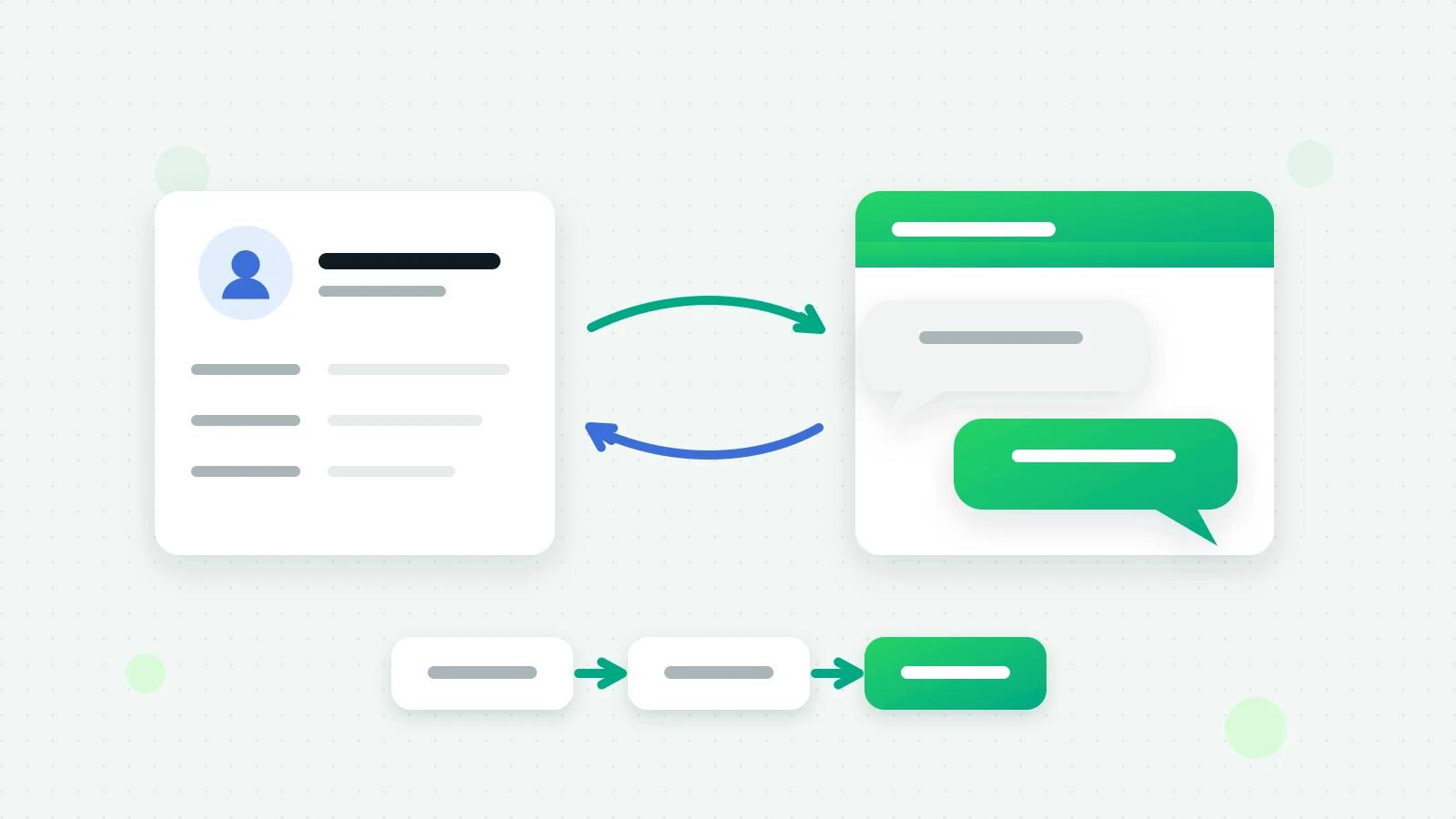
Moving a lead to a stage in Fliok sets that stage’s Lead Status in Zoho, and a Lead Status set in Zoho moves the lead to the first stage that uses it. Until you map a stage by hand, Fliok uses values from Zoho’s standard Lead Status list: Not Contacted for a new lead, Contacted while it is being worked, Pre-Qualified when won and Lost Lead when lost. If your team renamed the pick list, map each stage to your own values.
Owners
A teammate is set as the Zoho owner only when they have a Zoho user with the same email. Give each person who works leads a Zoho user under the email they sign in to Fliok with, and ownership carries across.
The chat as a daily note
WhatsApp messages are not copied into Zoho one by one. With notes switched on, each linked lead gets one short note a day with the previous day’s messages. It is text only: photos and files are named, not copied. Leave it off if your Zoho timelines are busy enough already.
A worked example
- 1A customer taps your Click-to-WhatsApp ad and asks about a 2BHK.
- 2Fliok makes a lead with the ad as its source; the switch creates a Zoho lead with Lead Source “WhatsApp” and Lead Status Not Contacted.
- 3Your agent replies and moves the lead to Site visit; Zoho’s Lead Status follows.
- 4A colleague who works in Zoho updates the email; it comes back to Fliok.
- 5The next morning, the lead’s Zoho record gets a note with yesterday’s messages.
Keep the two lists clean
A sync copies mistakes as faithfully as it copies data. A few habits keep both sides tidy:
- One number, one person. A shared office number on several Zoho records links only one of them.
- Country codes everywhere, in Zoho and in your forms, so “98765 43210” and “+91 98765 43210” are the same customer.
- Create leads in one place. If your team types WhatsApp leads into Zoho by hand as well, they make the duplicates the sync avoids.
- Look at the first week’s records before you rely on reports built on them.
What it does not do
- It does not send WhatsApp messages from Zoho. Messages go from Fliok: the inbox, broadcasts, automations and the AI.
- It does not bring in Zoho records from before you connected unless they are added or changed afterwards.
- It does not copy photos or files.
- Every lead is a contact in Fliok, so your plan’s contact limit applies; past it, Zoho leads are skipped.
This guide is about connecting Fliok to Zoho CRM; it says nothing about Zoho’s own plans or features. Setup and limits are on the Zoho CRM integration page. If your team uses HubSpot instead, see the HubSpot WhatsApp integration; for leads from portals, IndiaMART and JustDial leads on WhatsApp and the IndiaMART integration. Everything else is in Fliok’s own WhatsApp CRM.
Frequently asked questions
Can Zoho CRM be integrated with WhatsApp?
Yes, through software on the WhatsApp Business API. Fliok connects to Zoho CRM on the Basic plan and above: new WhatsApp leads become Zoho records, stage, owner and field changes go across, and leads added in Zoho come back, matched by phone.
Is the Zoho CRM sync two-way?
Yes. New leads and their stage, owner and field changes go to Zoho, and leads added or changed in Zoho after you connected come into Fliok, matched by phone. Each direction has its own switch, and stages map to Lead Status both ways.
Which Zoho module do WhatsApp leads go to?
Leads or Contacts, whichever you choose when you connect. Records already linked stay where they are if you change it later.
Do WhatsApp chats appear in Zoho CRM?
Only if you switch on notes: once a day, one short note per linked lead with the previous day’s messages. It is off until you turn it on, and photos and files are named, not copied.
Why can I not connect my Zoho account?
Usually because that Zoho account has no Zoho CRM set up, so Zoho gives no access to a CRM. Sign in with the Zoho account your leads are in, or set up Zoho CRM on this one first, then connect again.
Does the Zoho CRM integration cost extra in Fliok?
No. It is part of Automation & CRM on the Basic plan and above, with nothing added for the connection. Meta charges for the WhatsApp templates you send, and your Zoho plan is between you and Zoho.
Written by the Fliok team
The team that builds the product. Plain explanations of Meta's rules and of what Fliok does with them.
Try it on your own number
The Free plan connects one WhatsApp number, with no time limit. Questions first? A person replies within one business day.