On this page
- Why connect WhatsApp to HubSpot at all
- Decide these before you connect
- How Fliok’s HubSpot WhatsApp integration connects
- Contacts, never twice
- What stays in step, and which way
- WhatsApp inside HubSpot
- Send WhatsApp templates from HubSpot workflows
- Fliok AI knows the HubSpot record
- Keep the WhatsApp Business app too
- What it does not do
- Frequently asked questions
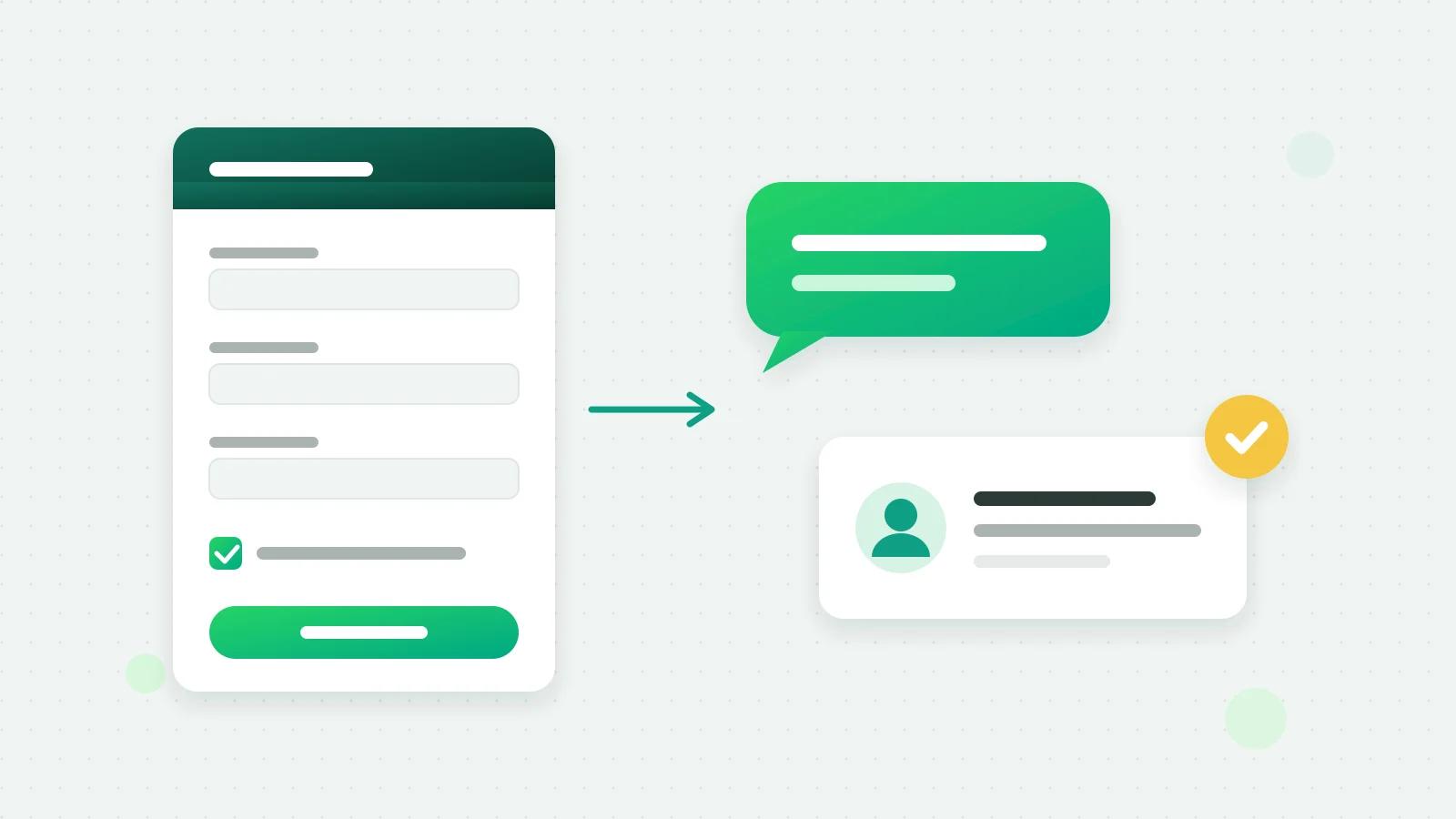
A HubSpot WhatsApp integration should do four things: turn each WhatsApp lead into a HubSpot contact without making duplicates, keep the owner and the lifecycle stage the same in both places, put the conversation where your sales team looks, and let HubSpot workflows send WhatsApp messages. This guide explains what to decide before you connect, how Fliok’s HubSpot connection does each of those four things, and where its limits are.
Why connect WhatsApp to HubSpot at all
If your sales team lives in HubSpot and your customers live on WhatsApp, two things go wrong. Leads that start on WhatsApp never reach the CRM, so the pipeline is short and nobody can say where the business came from. And the person who owns a deal in HubSpot cannot see what the customer said on WhatsApp yesterday. An integration closes both gaps without anyone copying numbers by hand.
Decide these before you connect
- 1Who owns a lead? If owners are assigned in HubSpot, let the owner flow from HubSpot to WhatsApp. If your WhatsApp team assigns them, the other way round.
- 2Which lifecycle stages matter? Map your WhatsApp pipeline’s stages to HubSpot’s lifecycle stages, so a lead marked qualified in one is qualified in the other.
- 3How much of the chat belongs in HubSpot? Every message clutters a timeline. A daily summary per lead is usually enough.
- 4Do you want deals? If your team forecasts from HubSpot deals, have one made for each WhatsApp lead; if not, leave it off.
- 5What should workflows send? List the approved WhatsApp templates a HubSpot workflow may send: a welcome, a reminder, a follow-up.
How Fliok’s HubSpot WhatsApp integration connects
The HubSpot connection is part of Automation & CRM, on the Basic plan and above, and an admin sets it up:
- 1Open Settings → Integrations → HubSpot in Fliok and press Connect HubSpot.
- 2Sign in to HubSpot, pick your HubSpot account and approve access. Deals and the workflow action are optional permissions you can allow there.
- 3Choose what syncs: the direction of each field, whether the chat goes on the timeline, and whether deals are made.
- 4Press Send existing leads to send the leads you already have; new ones follow as they arrive.
Contacts, never twice
For each WhatsApp lead, Fliok looks in HubSpot for the number in the phone and mobile phone fields first, then for the email, and links the contact it finds. It creates a contact only when neither matches. Keep numbers in HubSpot with their country code and the match is reliable.
What stays in step, and which way
| What | Direction |
|---|---|
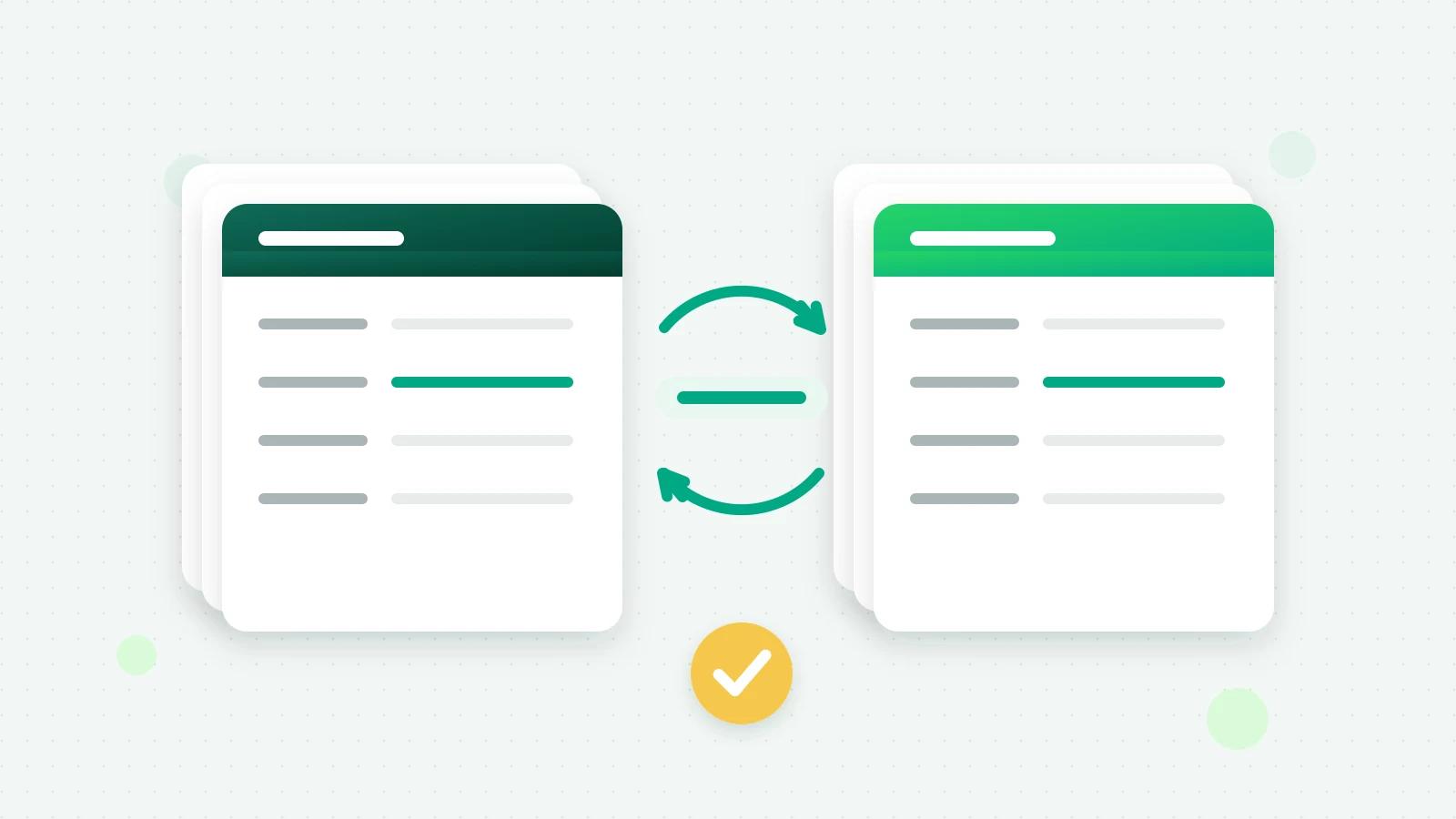
| Name, email, owner, lifecycle stage | Your choice for each: both ways, one way, or off |
| WhatsApp opt-in | From Fliok to HubSpot |
| Stage name in Fliok, lead source, last message | From Fliok to HubSpot |
| A deal (optional) | Made in the pipeline you pick; its stage, amount and owner follow the lead |
HubSpot contacts are not imported into Fliok as leads. A contact links when its number matches a lead, for example when that person messages you or when you send your existing leads.
WhatsApp inside HubSpot
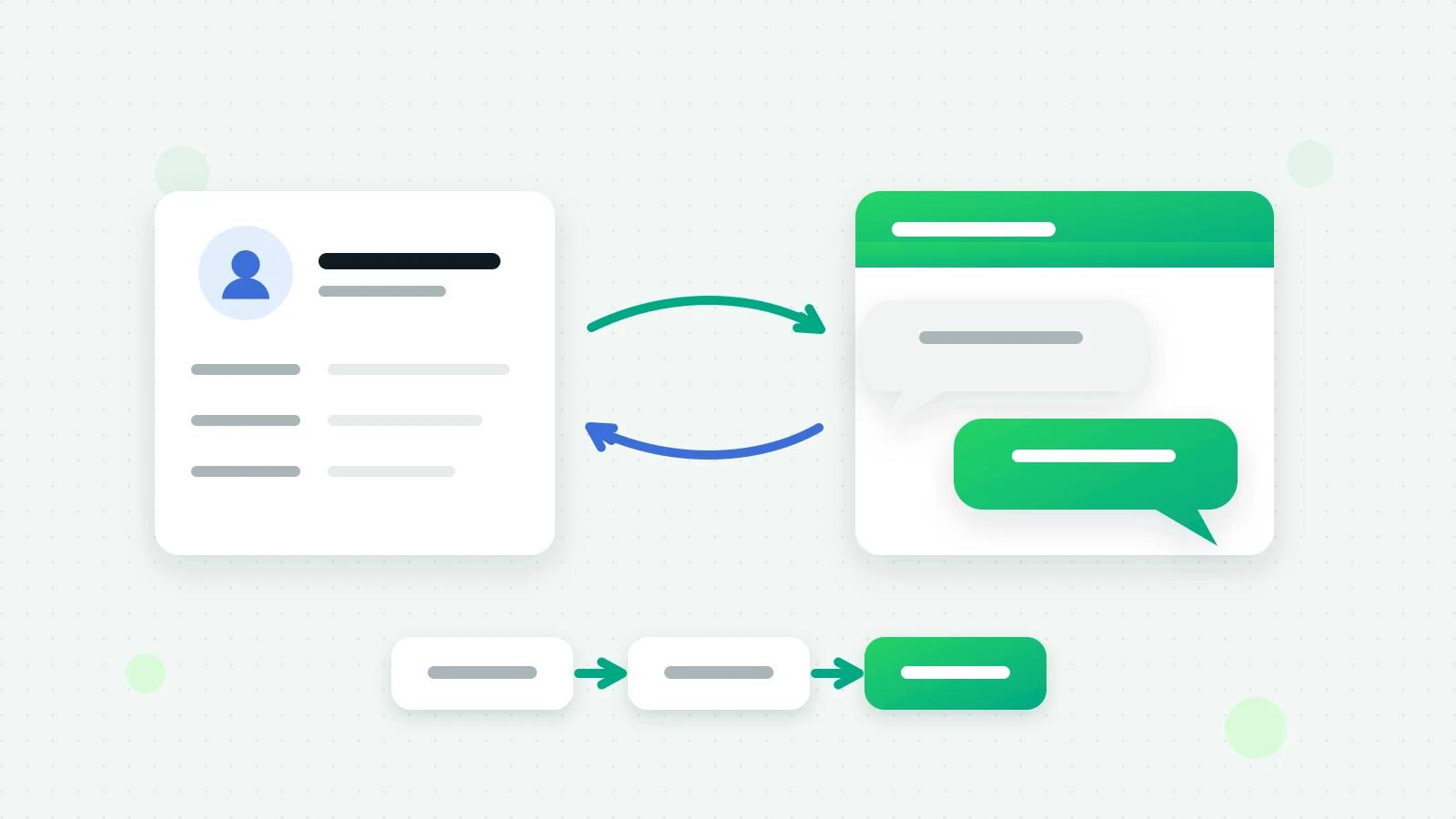
- The contact’s card. A “WhatsApp (Fliok)” card on the contact shows their WhatsApp opt-in, when they last wrote and their latest messages, with a link to open the chat in Fliok.
- The timeline. Optional: one WhatsApp entry per lead per day with that day’s messages, plus payments and store orders as notes. Entries are text; photos and files are named, not copied.
Send WhatsApp templates from HubSpot workflows
With the workflow permission allowed, HubSpot workflows get an action called Send WhatsApp template (Fliok). Pick an approved template from your Fliok workspace and fill in its variables, up to five. The step reports back what happened: sent, opted out, no WhatsApp number, template not found or not approved, variables missing, or a plan or monthly limit reached.
A few rules hold whichever tool sends:
- Approved templates only. A workflow usually writes to someone who has not messaged you in the last day. Meta allows ordinary messages only inside an open 24-hour customer service window (Meta: pricing (opens in a new tab)), so the action sends templates, never free text.
- Opted-out customers are never messaged, whichever tool asks, and your Fliok plan’s limits apply.
- No blank variables. A template with an empty variable is refused before it reaches WhatsApp, so give HubSpot properties a default.
- The action needs a HubSpot account with workflows.
For writing templates that pass review, see how WhatsApp template approval works.
Fliok AI knows the HubSpot record
When Fliok AI answers a customer on WhatsApp, it knows their HubSpot owner, lifecycle stage and deal as internal context, so an existing customer is treated as one. It never mentions HubSpot, a deal or its amount to the customer. The Zusta AI Assistant in Fliok can read the same record, and how the sync is going, when you ask it.
Keep the WhatsApp Business app too
If your number is on the WhatsApp Business app today, it can stay there. With coexistence, the number runs in the app and on the API at the same time, and replies sent from the phone appear in Fliok’s inbox like any other. See how coexistence works.
What it does not do
- It does not import HubSpot contacts into Fliok as leads.
- It does not copy photos or files into HubSpot; the timeline names them.
- One HubSpot account connects to one Fliok workspace.
- Disconnecting stops the sync both ways and revokes Fliok’s access. Leads in Fliok and contacts in HubSpot stay where they are.
Setup and every limit are on the HubSpot integration page. If your CRM is Zoho instead, see the Zoho CRM WhatsApp integration; for what Fliok’s own WhatsApp CRM does without another CRM, read WhatsApp CRM: turn chats into sales.
Frequently asked questions
Does HubSpot have a WhatsApp integration?
Yes, through software on the WhatsApp Business API. Fliok connects to HubSpot on the Basic plan and above: WhatsApp leads become HubSpot contacts, owner and lifecycle stage stay in step, and HubSpot workflows can send approved WhatsApp templates.
Will the integration create duplicate contacts in HubSpot?
No. Fliok looks for the WhatsApp number in the phone and mobile phone fields first, then for the email, and links the contact it finds. It creates a contact only when neither matches.
Can HubSpot workflows send WhatsApp messages?
Yes. The workflow action Send WhatsApp template (Fliok) sends an approved template with up to five variables to the contact. Customers who opted out are never messaged, and the step reports whether it was sent and, if not, why. It needs a HubSpot account with workflows.
Can I see WhatsApp chats inside HubSpot?
Yes. A WhatsApp card on the contact shows their opt-in and latest messages, with a link to the chat in Fliok, and you can choose to add one timeline entry per lead per day with that day’s messages. Photos and files are named, not copied.
Can I keep using the WhatsApp Business app with HubSpot?
Yes. With coexistence your number stays on the WhatsApp Business app while it is connected to Fliok, and replies sent from the phone appear in Fliok’s inbox like any other. The HubSpot connection works the same either way.
Which Fliok plan does the HubSpot integration need?
Basic or above: HubSpot is part of Automation & CRM, with nothing added for the connection. An admin connects it, and Meta charges for the WhatsApp templates that workflows send.
Written by the Fliok team
The team that builds the product. Plain explanations of Meta's rules and of what Fliok does with them.
Try it on your own number
The Free plan connects one WhatsApp number, with no time limit. Questions first? A person replies within one business day.